Break Glass (Emergency Data Retrieval)
The application offers a feature that allows users to access sensitive data from tenant backup files, even when the server is offline, the tenant database or web interface is inaccessible, or the original deployment is unavailable. This type of Emergency Data Retrieval operation is typically referred to as "Break Glass".
Requirements
To retrieve sensitive data, the Administrator must ensure the following are available:
-
Backup files from the original tenant: These backups are essential for data retrieval. To create or schedule periodic backups, refer to the backup section of the product manual: Backup Guide.
-
Break Glass Key from the Original Tenant: The Break Glass Key must be active from the time the backup was created. Site Administrators can obtain the Break Glass Key from the bottom of the tenant’s Home screen (dashboard) using the Break Glass Key controls. If the key was rotated and does not match the one from the backup file, the operation will fail. Be sure to safely store all previous and current keys.
Tip
For security, we recommend applying a Workflow requirement to the Break Glass Key access using the Site Level Workflow Selector "Manage Break Glass Key".
- Any 12Port Platform Deployment: This can be the original deployment on its original host or a new deployment on a new host. In the case of a new deployment, the Administrator should transfer the backup files to the new host before proceeding.
Recovery Procedure
1. Locate the Deployment Folder
In the steps outlined below, we assume that 12Port is installed in the $HOME directory on the host machine. As an example, $HOME might be C:\12Port on Windows or /opt/12port on Linux.
2. Open Command Prompt
Launch the command line interface (shell on Linux or PowerShell on Windows) and navigate to the $HOME directory.
3. List Assets by Container
To list all assets per container, use the following command. Note that the command starts with the Root container of the /root site and allows the user to drill down to sites or sub-containers.
To list assets from the Root container of the /root site:
Linux:
Windows:
The parameters in the above command are as follows:
- backup-file: Path to the backup file (can be absolute or relative).
- break-glass-key: Break Glass Key from the original tenant.
Example command: To list all assets in the Root container of the /root site in the backup file backup/TenantEcho/20250711-101251-full-001.zip, use the following command:
.\bin\apptool backup-browse backup/TenantEcho/20250711-101251-full-001.zip wdaxx0DgXuLSoKgMQppDkdJ_SLNVodrhuMZaXTKUV_k
Example output:
List of assets in the site [root] container [root]

bd6e071c-d864-4af6-8102-29d81c8b22bd [Container] IP Lists
9660aebc-0687-4be0-a5e7-9de47330fd96 [Container] QS Assets
03bf75f6-b74c-4b9e-9540-54b1f86e73b4 [Container] secure-devices
2412778d-3bd0-49f6-b3a4-761f4de51db0 [Windows Host] Red Forest QS Admin
a410e6d2-96b8-46e3-b726-3f0250fd53e8 [Container] DB Accounts
0176c23a-c246-4c68-a094-8f0c93845ccf [WEB Portal] Azure Portal
83d164ba-3328-4e0b-98de-75a8651abbb5 [Container] Production
72e5448a-f99b-442c-a21d-e5f54870e350 [Container] Kubernetes
f3bc3c07-695b-4769-b4f4-eed8e2f55c9f [Container] AI Agents
4d0c1938-146c-4e5b-920d-4634692703b7 [WEB Portal] Virtual Host
1ecf3623-db40-4699-bc78-a01c16ff5b75 [Container] PW Resets
1f9f65fe-3424-4545-9fe8-4d5c342d00df [Container] Imports

Total: 12.
To list assets from the root container of the specified site:
Linux:
Windows:
Example command: To list all assets in the Root container of the /Oracle site in the backup file backup/TenantEcho/20250711-101251-full-001.zip, use the following command:
.\bin\apptool backup-browse backup/TenantEcho/20250711-101251-full-001.zip wdaxx0DgXuLSoKgMQppDkdJ_SLNVodrhuMZaXTKUV_k Oracle
Example output:
List of assets in the site [Oracle] container [root]

dc0f9d7c-b561-41db-a1c4-e21aca93f166 [Container] Admin Accounts
e909fb1e-92d8-4439-b71a-1c73e37cb8fc [Container] Requests

Total: 2.
To list assets from the QS Assets container specified by path (containers separated by / slash) of the specified /root site:
Linux:
Windows:
Example command: To list all assets in the QS Assets container of the /root site in the backup file backup/TenantEcho/20250711-101251-full-001.zip, use the following command:
.\bin\apptool backup-browse backup/TenantEcho/20250711-101251-full-001.zip wdaxx0DgXuLSoKgMQppDkdJ_SLNVodrhuMZaXTKUV_k Root "QS Assets"
Example output:
List of assets in the site [Root] container [QS Assets]

28b15a95-cb64-4025-99b6-5fbc2ad99956 [Windows Host] Windows Remote Access Server
ed469847-a369-4f0b-9e4b-0e3d3dcc2d5a [Unix Host] Linux Remote Access Server

Total: 2.
Example command: To list all assets in the Development container in the parent QS Assets container of the /root site in the backup file backup/TenantEcho/20250711-101251-full-001.zip, use the following command:
.\bin\apptool backup-browse backup/TenantEcho/20250711-101251-full-001.zip wdaxx0DgXuLSoKgMQppDkdJ_SLNVodrhuMZaXTKUV_k Root "QS Assets/Development"
Example output:
List of assets in the site [Root] container [QS Assets/Development]

82424e16-d8ba-4ce8-b140-f8755b0ff2c9 [Container] Proxy Connections
09c192c8-1fec-4c77-ac21-aa6b42f9f8e6 [WEB Portal] AWS Portal
c5f26196-2f6f-4de4-b8a6-524ff63b86b3 [Windows Host] Win Host Terminated

Total: 3.
4. Search for Assets
To search for assets within the backup files, use the following command:
Linux:
Windows:
The parameters in the above command are as follows:
- backup-file: Path to the backup file (can be absolute or relative).
- break-glass-key: Break Glass Key from the original tenant.
- search-criteria: Search term used to find the asset in the backup file. The command will search the asset name or description based on the provided criteria.
Example: To search for assets that match the term "ubuntu" in the backup file backup/TenantEcho/20250711-101251-full-001.zip, use the following command:
.\bin\apptool backup-list backup/TenantEcho/20250711-101251-full-001.zip wdaxx0DgXuLSoKgMQppDkdJ_SLNVodrhuMZaXTKUV_k ubuntu
The command will return a list of matching assets. Each entry will include the asset ID, which can be used to access specific fields, including secret ones.
Below is the example of the command output. The GUID that starts the line is the asset ID.

446e3774-b10e-40da-bb43-fc86c289dbb0 Prod Web Server Ubuntu - ubuntu web server - production
8f1256b1-f2a3-452f-a22c-8a89d4898469 Ubuntu 20.04
67d62c29-88cd-4591-b63b-945c71888d33 Ubuntu 22.04

Total 3 assets.
5. Print All Field Values of Selected Asset
To output all fields (including secrets) of a chosen asset, use the following command:
Linux:
Windows:
In the command above parameters are:
- backup-file: Path to the backup file (can be absolute or relative).
- break-glass-key: Break Glass Key from the original tenant.
- asset-id: Asset ID from the previous command.
Example: To retrieve all field values for asset ID 8f1256b1-f2a3-452f-a22c-8a89d4898469 from the backup file backup/TenantEcho/20250711-101251-full-001.zip, use the following command:
.\bin\apptool backup-asset backup/TenantEcho/20250711-101251-full-001.zip wdaxx0DgXuLSoKgMQppDkdJ_SLNVodrhuMZaXTKUV_k 8f1256b1-f2a3-452f-a22c-8a89d4898469
Example output:

6. Print A Specific Field Value of Selected Asset
To output a specific field (whether secret or not) of a chosen asset, use the following command:
Linux:
Windows:
In the command above parameters are:
- backup-file: Path to the backup file (can be absolute or relative).
- break-glass-key: Break Glass Key from the original tenant.
- asset-id: Asset ID from the previous command.
- field-name: Name of the field (e.g., Host, User, or Password).
Example: To retrieve the Password field for asset ID 8f1256b1-f2a3-452f-a22c-8a89d4898469 from the backup file backup/TenantEcho/20250711-101251-full-001.zip, use the following command:
.\bin\apptool backup-field backup/TenantEcho/20250711-101251-full-001.zip wdaxx0DgXuLSoKgMQppDkdJ_SLNVodrhuMZaXTKUV_k 8f1256b1-f2a3-452f-a22c-8a89d4898469 Password
Example output:

7. Retrieve Field Value History
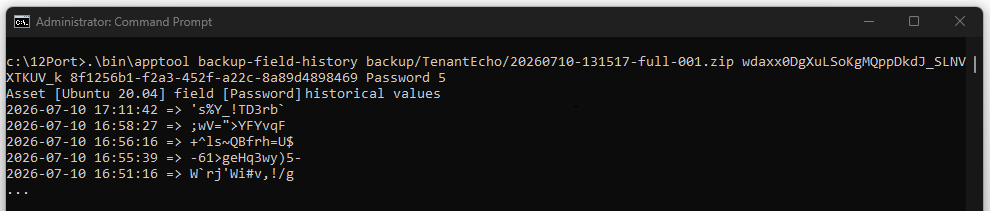
The backup-field-history command returns the decrypted history of an asset field value from a backup, limited to the specified number of previous values. This is useful when recovering systems that have themselves been restored from backup and may require an earlier credential that was valid at the time the endpoint backup was created.
To retrieve the current and previous values of an asset field from the backup, use the following command:
Linux:
Windows:
The parameters in the command above are:
- backup-file: Path to the backup file (can be absolute or relative).
- break-glass-key: Break Glass Key from the original tenant.
- asset-id: Asset ID returned by the
backup-listcommand.- field-name: Name of the field whose value history should be retrieved (for example, Password).
- count: Maximum number of historical values to return.
This command returns the decrypted history of the specified asset field from the backup, including the current value and previous values, up to the number specified by count.
Each returned value includes the date and time at which the field changed. This information can be used to correlate credential changes with the state of a restored endpoint, making it easier to identify which historical credential matches the restored system.
If additional historical values exist beyond the requested count, the output ends with ... to indicate that more history is available than was returned.
Example: To retrieve the five most recent password values (at the time the backup was completed) for asset ID 8f1256b1-f2a3-452f-a22c-8a89d4898469 from the backup file backup/TenantEcho/20260710-131517-full-001.zip, use the following command:
.\bin\apptool backup-field-history backup/TenantEcho/20260710-131517-full-001.zip wdaxx0DgXuLSoKgMQppDkdJ_SLNVodrhuMZaXTKUV_k 8f1256b1-f2a3-452f-a22c-8a89d4898469 Password 5
Example output:
Asset [Ubuntu 20.04] field [Password] historical values
2026-07-10 17:11:42 => 's%Y_!TD3rb`
2026-07-10 16:58:27 => ;wV=">YFYvqF
2026-07-10 16:56:16 => +^ls~QBfrh=U$
2026-07-10 16:55:39 => -61>geHq3wy)5-
2026-07-10 16:51:16 => W`rj'Wi#v,!/g
...
The command returns the current password (current as of the time of this backup) value followed by the requested number of previous values, together with the date and time each value became effective.
Notes
Any parameter in the command line can be substituted with a dash (-) character. When this is done, the command line tool will prompt the user to input the parameter interactively. For security reasons, sensitive parameters, such as the Break Glass Key, will be masked to prevent them from being displayed on the screen. This is particularly useful for preventing sensitive data from being stored in shell history files.
For example, the backup-field command below will prompt for the Break Glass Key because the actual Break Glass Key value is not included, but rather is replaced with a dash (-) character after defining the backup file location:
.\bin\apptool backup-field backup/TenantEcho/20250711-101251-full-001.zip - 8f1256b1-f2a3-452f-a22c-8a89d4898469 Password
Example output:
