Scripts Management
Script is a sequence of commands or a declaration in a supported coding system executed on remote devices to collect information or to change a device configuration.
Scripts are the executable part of a Task which can be executed via a schedule or on-demand.
The system supports the following script execution languages:
- Groovy - Groovy scripts are executed by the system framework as a part of the job execution machine.
- Shell - Unix Shell scripts are executed on the remote Unix devices accessible by the SSH protocol.
- PowerShell - PowerShell scripts are executed on remote Windows devices accessible by the WinRM protocol.
Creating a new Script
New scripts can be added to the Scripts library to later be run against managed hosts using a task to perform the job execution. A script produces an output that can be parsed like providing information about the host or it can update a host's configuration like firewall rules.
To create a new script:
- Log in with an Administrator account.
- Navigate to Management > Scripts and click the Add button.
-
Click on the parameter name for details about each or follow the guidance provided here:
- Name: enter a unique name for your script.
- Description: optional, enter a comment or details about your script.
- Type: defines the language or interpreter system that executes the script. Script type also defines the protocol to access the remote device. The following options are available:
- Groovy: Groovy scripts are executed by the system framework as a part of the job execution machine.
- Shell: Unix Shell scripts are executed on the remote Unix devices accessed by SSH protocol.
- PowerShell: PowerShell scripts are executed on remote Windows devices accessed by WinRM protocol.
-
Role: defines the purpose of the script in other system operations. System workflows reference actions using script roles that are implemented using different scripts for different types of assets.
Examples of script roles include firewall management or network state access. The scripts to open a firewall port are different for Linux and Windows servers; however, the system allows the user to open a firewall port as a common action over the device on the network map. -
Orchestration: defines whether the script runs in isolation of as a part of a larger batch. The system supports the following orchestration types:
- Standalone: the system executes the script code
- Batch: the system executes several scripts in a row one after the other one as part of a single execution. The system executes batch script re-using the same connection to the remote host minimizing number of established connections. When executing each script in a batch the system runs the parser associated with each script. In addition the system passes the output of each script to the next script so that a script in a batch might act on the output of the previous script. This option allows batch designers to inject remote or Groovy scripts for additional data processing or data manipulation.
- Handler: the system executes the script from one of the system actions. The action implements its proprietary logic before and after execution of each script in a batch but delegates the logic executed on the endpoint to the customizable script in the Script Library.
- Flow: the system schedules scripts in a flow as separate tasks depending on the job state. Each script after completion updates the job state and schedules other scripts in the flow triggered by the new job state until there are no scripts to execute, then the flow completes. Flow allows script designers to build complex long running script execution workflows.
-
Parameters: Comma separated lists of asset field names. The job execution system will pass the asset field values to the script as positional script parameters corresponding to the order of fields in the parameters list.
- Code: Script code is a structural or declarative program in the language defined by the script type to run on the remote device as as a part of the system framework. This supports Groovy, Shell and PowerShell code.
- Parser: Parser to process the script output to the tabulated format and to store it in the system tables for further analysis.
- Click the Save button to complete the operation.
Interactive User Input Script Parameters
Scripts can be configured to prompt users for additional input when executed interactively (on-demand). This allows a script to receive values at runtime without requiring those values to exist as Asset fields or hardcoded into a native script.
To define an interactive parameter, add it to the script's Parameters field using the following format:
Where:
- input:string: identifies the parameter as a user-supplied input.
<ParameterName>defines the name of the parameter displayed to the user when the script is executed.
For example, the following parameter prompts the user to provide a value named Value before the script begins execution:
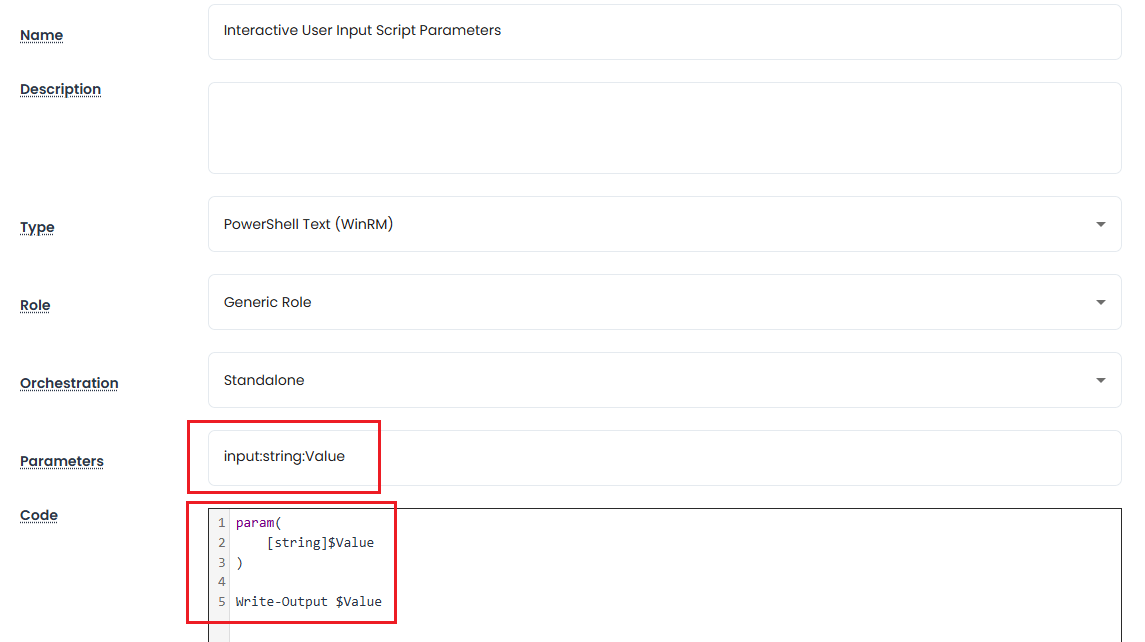
When a user executes the script from the Asset page, the application displays a dialog requiring a value for each interactive parameter. The values entered by the user are passed to the script as positional parameters together with any Asset field parameters defined for the script.
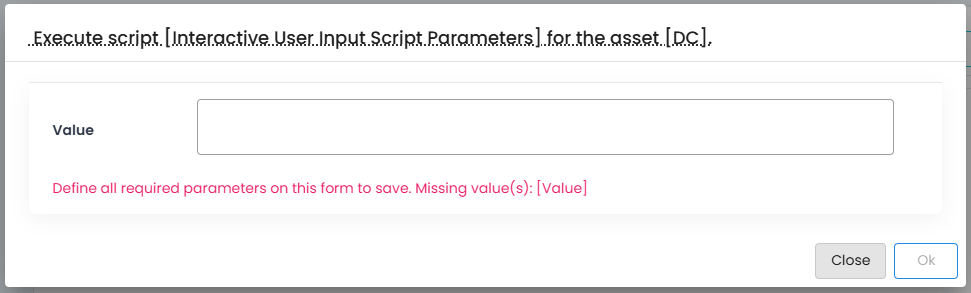
Interactive parameters are supported by all script types, including Groovy, Shell, and PowerShell.
Tip
Interactive parameters are useful for scripts that require user-supplied values at execution time, such as backup, reboot, or cache reset operations. This allows Administrators to grant users permission to Execute specific scripts while still requiring runtime input for the operation.
Example Script
12Port Parameters and Code in a custom PowerShell Text (WinRM) script to export or backup a Log from Windows Event Viewer located on the target Host.
Parameters:
Code:
param(
    [string]$LogName,
    [string]$FileName
)

$BackupFolder = "C:\Event-Exports"
$Timestamp = Get-Date -Format "yyyyMMdd_HHmmss"
$BackupPath = "$BackupFolder\$FileName`_$Timestamp.evtx"

# Create backup folder if it does not exist
if (!(Test-Path $BackupFolder)) {
    New-Item -Path $BackupFolder -ItemType Directory | Out-Null
}

wevtutil epl $LogName $BackupPath

if (Test-Path $BackupPath) {
    Write-Output "Backup completed successfully."
    Write-Output "Log: $LogName"
    Write-Output "Saved to: $BackupPath"
}
else {
    Write-Output "Backup failed."
}
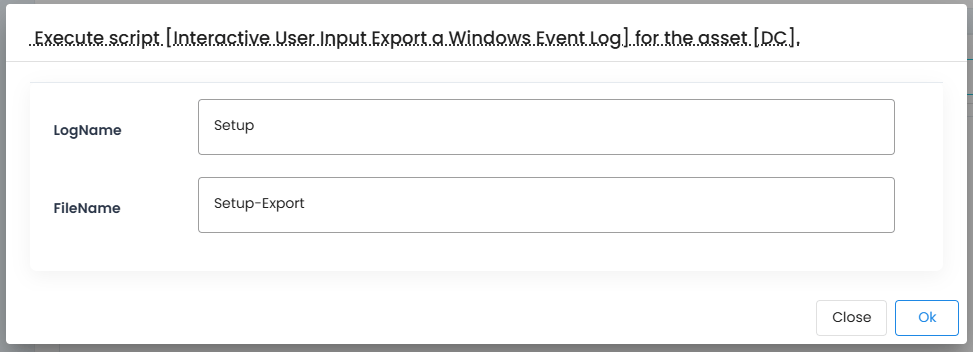
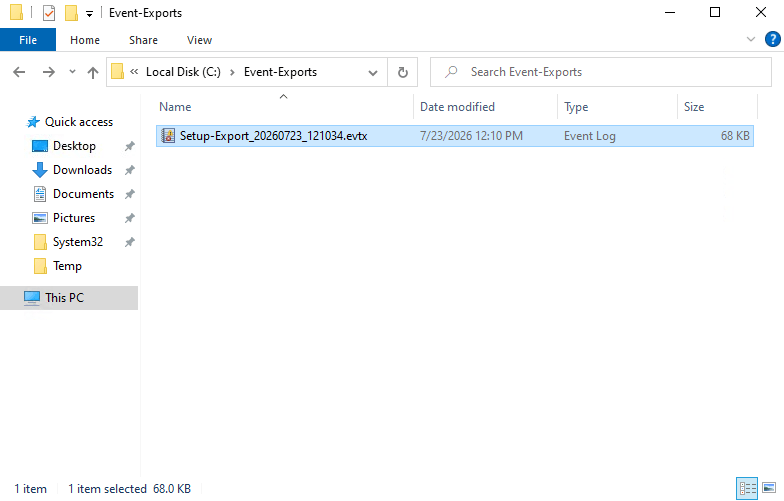
Upon interactive execution of this script, the user would be prompted for both LogName and FileName inputs. They could provide values like Setup and Setup-Export to create an export of the Setup event logs to the location C:\Event-Exports\Setup-Export_.evtx.
Which would generate the following file creation output on the target Host server:
Editing Scripts
Administrators can edit any custom or out of the box, default script by using the Actions > Edit option. On the Edit Script form, make any changes required and click the Save button to complete the update.
Tip
If you edit the Code on an out of the box, default script you can later use the Reset to Factory Default option to restore the script's Code to its original, out of the box state.
Executing Scripts
Scripts are a crucial part of Task Execution in the software. A task combines a Script which is the portion that is executed against the host and a policy, that determines the time or event that triggers the task to be executed.
To execute a script, you must include it within a task and assign an execution policy.
- After the script is saved, you can add this script to an asset's unique task list or to an asset type's unique task list for execution.
- To add it to an asset type's task list, navigate to Management > Asset Types, locate the asset type and use its Actions > Tasks option.
- Click the Add button
- Select your script
- Assign a Trigger. Use interactive for on-demand execution.
- And define a Run As account.
- To add it to an asset's unique task list, navigate to the Asset Database and locate the asset where this script will be assigned. From its Actions menu, choose the Tasks option. From the asset's Tasks page, click Make Unique button and then the Add button.
- Select your script
- Assign a Trigger. Use interactive for on-demand execution.
- And define a Run As account.
- To add it to an asset type's task list, navigate to Management > Asset Types, locate the asset type and use its Actions > Tasks option.
- After the script has been assigned to the task, it will execute based on either the schedule defined or interactively (on-demand). For schedule, wait for the task to be executed based on the schedule or for interactive execution, use the Execute > <
ScriptName> from the Asset page to execute the task on-demand.
Note
To review the results of a task execution, use the Reports > Jobs from the Asset itself or from the Global reports section in the left menu navigation.