Web Remote Access Sessions
A Web based Remote Access Session is a session that is both initiated and conducted directly within your web browser. The browser acts as the client, connecting to the managed endpoint using the appropriate protocol (e.g., RDP, SSH, HTTPS, etc.).
A user's ability to access a web-based remote session is determined by the Access Profile and permission assigned to the asset. To start a web remote session, the user must have:
- At minimum, Asset Role: Viewer permission on the asset; and
- An assigned Access Profile that includes either Web Session: Allow or Web Session: Record declaration.
If either of these conditions is not met, the user will not see the Access button necessary to initiate the session.
Starting a Web Remote Session
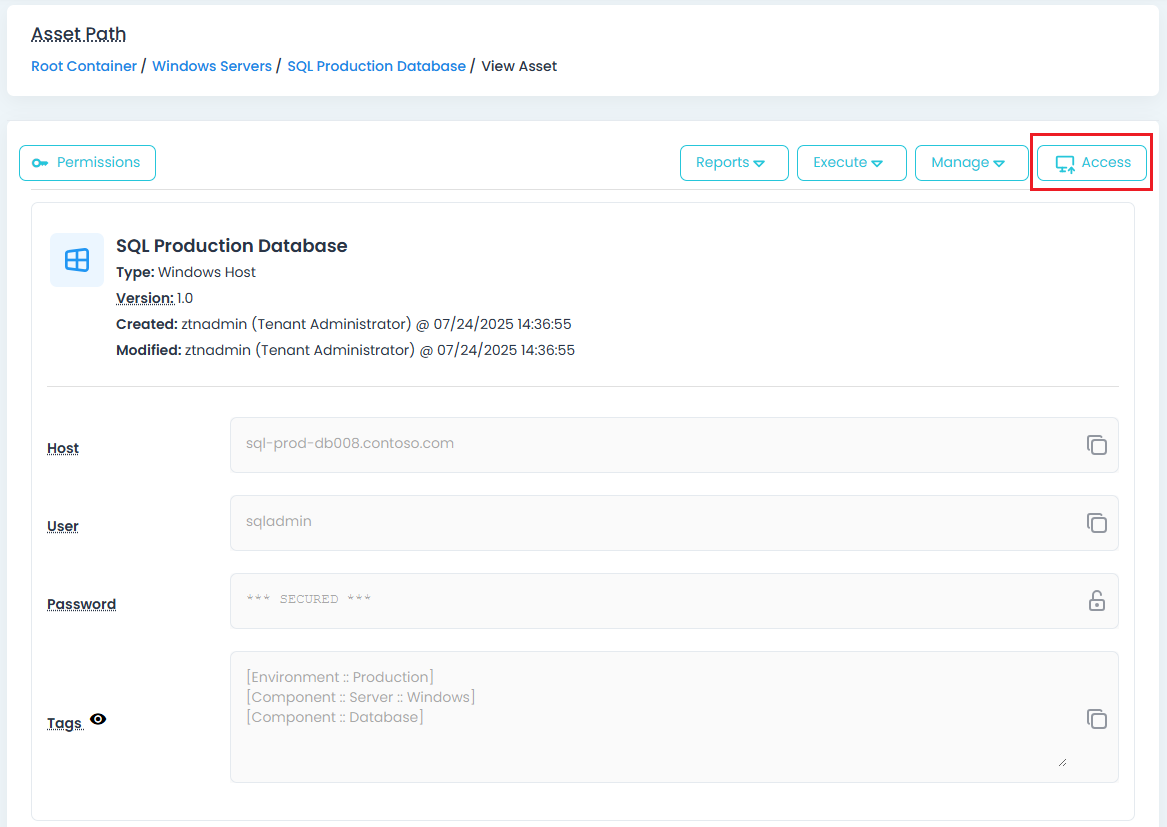
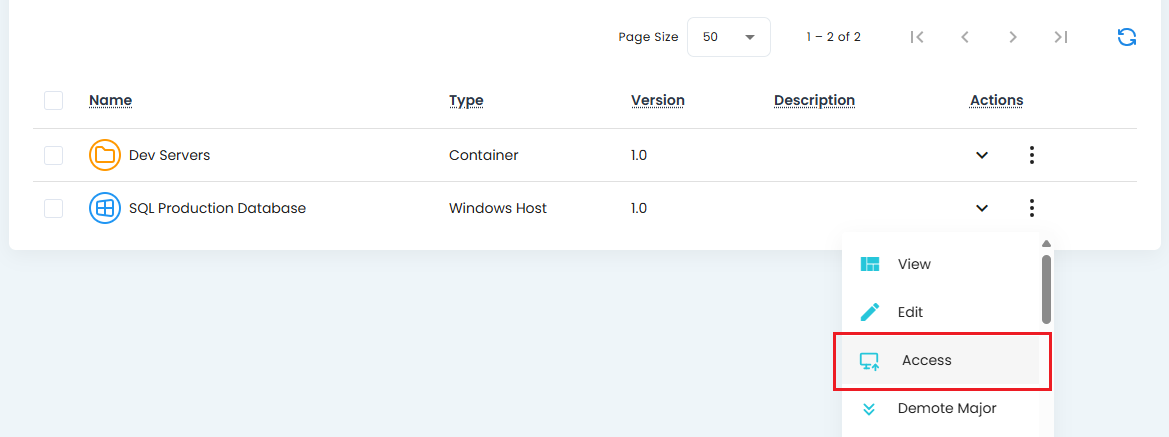
With the required permissions and profile in place, navigate to the asset you want to connect to. From the Asset List page, click the Quick Access button, or from the View Asset page, click the Access button. Alternatively, from the Container View, select Access from the asset's Actions menu.
Upon initiating access, the Session Launcher will appear. Configure the required session parameters, enter a multi-factor authentication (MFA) token if prompted, and click the Access button in the launcher to begin the session.
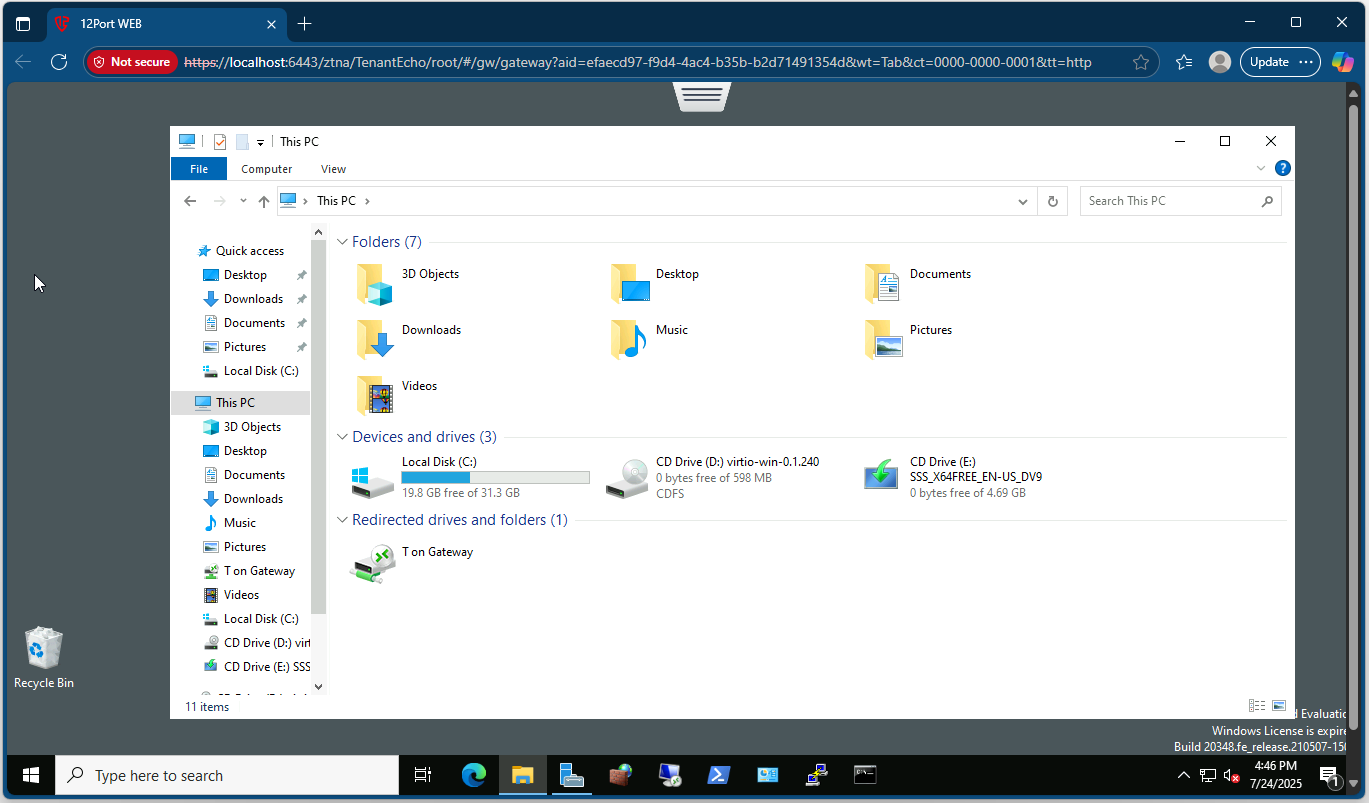
Depending on the configuration selected in the launcher, the session will open in a new browser Tab or Window. You can then interact with the remote endpoint as if you were connected directly.
Quick Access
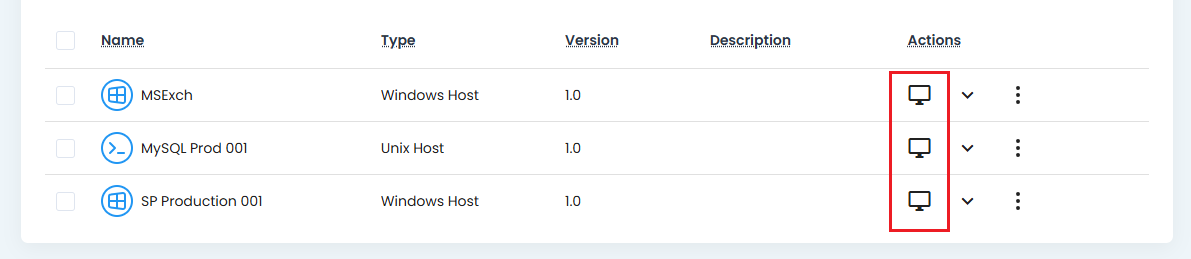
The Quick Access button, located on the Asset List page in-line with each Asset, enables users to initiate a Web Session with a single click. The Quick Access option is only available for Assets that support Web Sessions, meaning the Asset’s Asset Type must define an Access Protocol (e.g., RDP or SSH).
When invoked, Quick Access applies the following logic depending on session requirements and access conditions:
-
Initiates a Web Session using the most recently applied (or default) parameters from the Session Launcher, bypassing the Session Launcher interface entirely.
-
Displays the Session Launcher, with all parameters configurable, when multi-factor authentication (MFA) is required for the session.
-
Opens to the Access Request screen when access is blocked by an active Workflow Selector.
-
Redirects to the View Request approval screen if the user's access request is pending approval.
-
Displays an Access Denied message when the user is not permitted to initiate this Web Session (e.g., when Web Session access is disabled in the assigned Access Profile or the user does not have an enabled Access Profile for this asset).
For RDS Remote Application sessions specifically, Quick Access attempts to automatically determine the appropriate jump host based on previously used Session Launcher settings.
When selecting an RDS Host Server Member Asset (jump host), Quick Access applies the following logic:
-
Displays an error if no Member Assets are available for the RDS Asset.
-
Uses the first available Member Asset as the jump host when no previous session launch exists, or when the most recent session launch used the Main Credentials rather than a Member Asset.
-
Uses the first available Member Asset as the jump host when the Member Asset associated with the most recent session launch is no longer available for the current RDS Asset.
-
Reuses the Member Asset associated with the most recent session launch when that Member Asset is still available for the current RDS Asset.
In-Session Toolbar
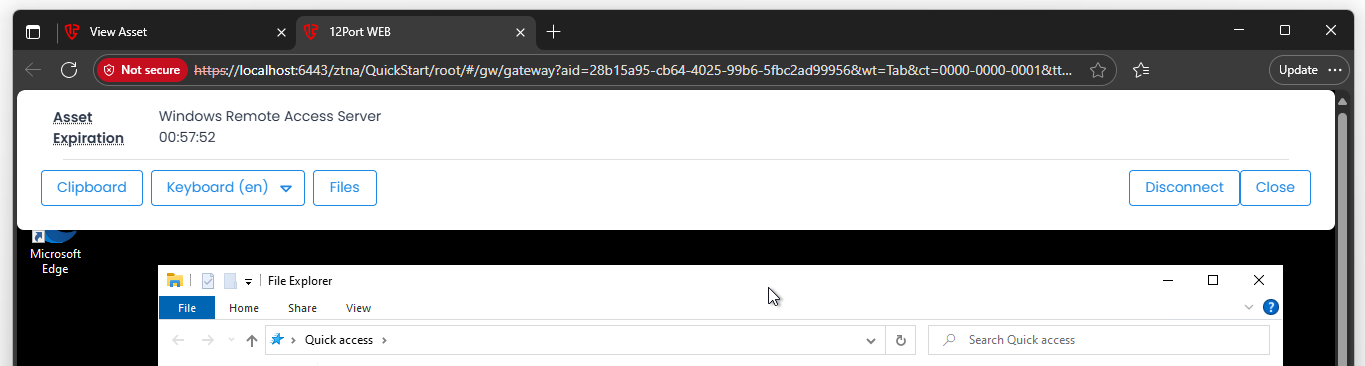
The in-session toolbar provides additional functionality while you are connected to the remote session. To activate the toolbar, click the handle located at the top-center of the session window. This will reveal the toolbar, which includes the following options.
Note
The toolbar automatically closes after 5 seconds if the user's mouse pointer does not enter the toolbar. To reopen the toolbar, click the handle at the top-center of the session window.
- Asset: Displays the name of the asset used for the remote access session (read only).
- Expiration: Displays a countdown timer for when workflow approved sessions will end. Use the Extend option to extend the end time. Is hidden for non-workflow approved sessions.
- Clipboard: Access and paste text from your local clipboard into the remote session.
- Keyboard / Hide Keyboard: Show or hide an on-screen keyboard of the selected language.
- Files: Opens the File Manager used to transfer files to and from this host.
- Send: Opens the Send menu, which provides options for transmitting specific actions to the active web session:
- Send Password: Transfers the value stored in the asset's Password field to the user's clipboard. This function requires that Clipboard Upload is allowed in the user's Access Profile. Additionally, the user must have a minimum of Asset Supervisor permission for the asset. Executing this action generates a Decrypt Field event.
- Send Password (Request Access): Available when the user is subject to an Asset Unlock workflow requirement. This option allows the user to submit a request for access.
- Send Password (Waiting for Approval): Indicates that an access request has been submitted and is pending workflow approval. No additional action can be taken until approval is granted.
- Send Ctrl-Alt-Del: For Windows-based RDP sessions only, transmits the Ctrl + Alt + Delete key sequence to the remote host system.
- Send Tool: For SSH-based sessions only, deploys a custom download tool to the user's
homefolder facilitating file downloads from the remote host.
- Send Password: Transfers the value stored in the asset's Password field to the user's clipboard. This function requires that Clipboard Upload is allowed in the user's Access Profile. Additionally, the user must have a minimum of Asset Supervisor permission for the asset. Executing this action generates a Decrypt Field event.
- Session URL: Copies the active web session URL to the user's native clipboard. When shared with and accessed by other users, the URL opens the associated Asset View page and displays the Join dialog, allowing this user to select their parameters to join the active session. The user attempting to join must have the required permissions to access and join the active session.
- Disconnect: End the remote PAM session.
- Close: Collapse the in-session toolbar. The toolbar automatically closes after 5 seconds if the user's mouse pointer does not enter the toolbar.
Completing a Web Remote Session
Once you have finished your session, it is recommended to properly disconnect, log out, or exit using the appropriate method for the remote endpoint. Simply closing the browser tab or window may leave the session in a disconnected state. This could impact the endpoint or prevent other users from connecting later.