Session Launcher and MFA Challenge
Before initiating a Web based Remote Session, users are presented with a Session Launcher prompt. This interface allows users to define session parameters and, if required, complete an MFA challenge.
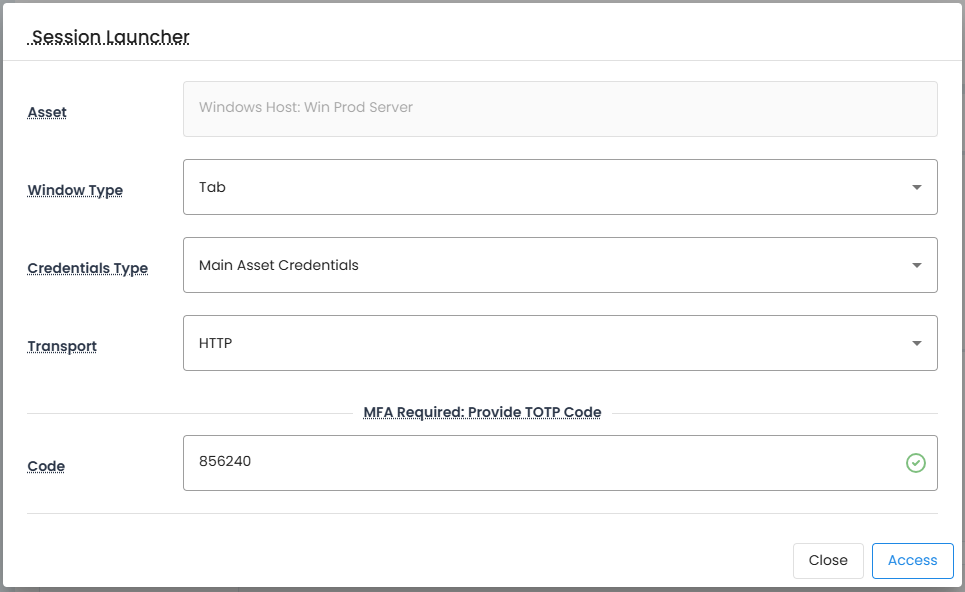
Web Session Launcher Parameters
The Web Session Launcher may include the following options, depending on the user's requirements:
- Asset: A read-only field showing the asset targeted for the remote session.
- Window Type: Defines how the session will be launched in the browser:
- Tab: Opens the session in a new tab within the current browser window.
- Full Screen: Opens the session in a new, maximized browser window.
- Credentials Type: Specifies which credentials will be used to authenticate to the asset endpoint. For more details about Credential Types, please review our Remote Session Credential Types article.
- Main Asset Credentials: Uses the credentials stored on the asset itself.
- Provided Host / Credentials: When the Host or User is empty, the user may select this option and provide the Host or Credentials for connection. Click here for more information about Provided Mode.
- Transit Credentials: Uses the credentials of the currently logged-in user.
- Member Credentials: Uses the credentials of the selected Member asset by its displayed Name. Members assets are defined in the asset itself.
A single host may be accessed by multiple Member credential accounts, each with its own password rotation schedule, history, and strategy. For example, an Active Directory (AD) account using LDAP-based password resets may be shared across hundreds of Windows hosts, while other accounts could follow independent rotation policies.
- Mirror Credentials: Uses the credentials of the found asset, by its displayed Name, based on the Mirror Account field's search criteria defined in the asset. Review our Mirror Account article for more information about this Credential Type.
- Transport: Determines the communication protocol between the browser and the application server:
- HTTP: Maintains the session through frequent HTTP requests and responses, with each request establishing its own TCP connection.
- WebSockets: Maintains the session using a single persistent TCP connection for the duration of the session.
Peformance Note:
WebSockets is generally the preferred transport, offering better performance and reduced latency. In contrast, HTTP transport can suffer from performance degradation due to buffering by intermediary devices such as load balancers or proxies. If WebSockets is not available due to network appliance restrictions, contact your network administrator to enable WebSocket support or adjust caching/buffering settings for HTTP traffic, if performance is not ideal.
- Code: This field is used to confirm the session using Multi-Factor Authentication (MFA). The platform supports the following MFA flows:
- TOTP: Enter a time-based one-time password (TOTP) from your mobile authentication app, then click Confirm.
- Entra ID:
- If prompted, confirm your password.
- Click the Push button to receive a notification in the Microsoft Authenticator app, or enter a code from the app and click Confirm.
- Duo Security: Click the Push button to receive a prompt in the Duo app, or enter a code manually and click Confirm.
- YubiKey: Place the cursor in the Code field, activate your YubiKey to generate a token, then click Confirm.
- Mail MFA: Click Push, then copy the verification code received via email and paste it into the field before clicking Confirm.
- Radius HOTP: Enter the code generated by your RADIUS token device and click Confirm.
- Radius Confirm:
- If required, re-enter your password.
- Click Push, then enter the code provided by your RADIUS device and click Confirm.
Note
The non-MFA selected parameters in the Session Launcher are automatically saved and will be pre-filled the next time you launch a remote session.
-
Session URL: The Session URL button in the session launcher dialog copies a direct session link to the clipboard without initiating the session.
This URL enables users to access the session interface directly, bypassing the need to navigate through the associated asset within the application. A common use case is bookmarking the session URL in a web browser, allowing for quick and repeated access to the session without additional navigation steps.
When the Session URL is accessed directly, the server-side backend performs the following validations:- Authentication: Confirms the user’s identity. If the user is not authenticated, they are prompted to log in before proceeding.
- Authorization: Verifies that the user has the necessary permissions to access the session.
- Approval status: Checks whether required approvals are in place. If approvals are missing, the user may be redirected to the graphical user interface (GUI) to request access.
Access to the session is granted only after all validation checks are successfully completed.
Note
The Session URL button is not available when the User field is empty.