RDS Remote Application: Universal Web Portal
Any generic web portal page with a universal direct login form is accessible via a web browser and could be used to manage internal infrastructure like Firewalls or SaaS applications. When integrated with the 12Port Access Broker via Remote Desktop Services (RDS), this Universal Web Portal application enables Zero Trust access with fully monitored and credential-injected administrative sessions using the Microsoft Edge browser.
Installation and Configuration
1. Download Required Files
* Executable:
https://bin.12port.com/product/remote-apps/app-web-portal/app-web-portal.exe
* Configuration File (.ini):
https://bin.12port.com/product/remote-apps/app-web-portal/app-web-portal.ini
Source files:
https://bin.12port.com/product/remote-apps/app-web-portal/app-web-portal.au3
https://bin.12port.com/product/remote-apps/ztna.au3
Note: Theztna.au3source file contains shared code used by all RDS Remote Application scripts. This file is required for compiling modified or custom created RDS app scripts.
* Place both the Executable (.exe) and Configuration (.ini) files in the same directory on the RDS Server where the Remote Application will be published. For example: C:\12Port-RDSApps.
2. Modify Configuration
The following configuration is required with this Remote Application. Default values may be modified when necessary:
[app]
debug=false
Script={var:User},{wait:1000},{TAB},{wait:1000},{var:Password},{wait:1000},{ENTER},{wait:1000},{var:TOTP},{wait:1000},{ENTER}
page-load-wait=2000
after-submit-wait=4000
focus-wait=500
| Setting | Default Value | Description |
|---|---|---|
debug | false | Enables or disables verbose logging for troubleshooting and diagnostics. |
Script | {var:User},{wait:1000},{TAB},{wait:1000},{var:Password},{wait:1000},{ENTER},{wait:1000},{var:TOTP},{wait:1000},{ENTER} | Comma-separated sequence of actions performed in the Edge browser after launch. Supported actions include {TAB}, {ENTER}, {var:Field}, and {wait:milliseconds}. |
page-load-wait | 2000 | Time, in milliseconds, to wait after a page loads before interacting with it. |
after-submit-wait | 4000 | Time, in milliseconds, to wait after submitting a form or action before continuing processing. |
focus-wait | 500 | Time, in milliseconds, to wait after focusing a window or input field before sending input. |
2A. Script Actions
The Script setting defines a comma-separated sequence of actions to perform within the Edge browser after launch.
Supported actions include:
| Action | Description |
|---|---|
{TAB} | Sends a Tab key press. |
{ENTER} | Sends an Enter key press. |
{var:Field} | Types the value of the specified asset field. For example, {var:User} or {var:Password}. |
{wait:milliseconds} | Pauses execution for the specified number of milliseconds. |
2B. Asset-Level Script Overrides
By default, the remote application executes the action sequence defined in the Script configuration parameter. However, individual assets can override this behavior by specifying an alternative script name in the asset's Script field.
The Script field is a predefined hidden field on the RDS Remote Application asset type. When populated and passed to the remote application through the Remote Arguments field, the application will execute the matching script sequence defined in the configuration file instead of the default Script sequence.
This capability allows a single remote application definition to support multiple web portal authentication workflows while enabling asset owners to customize the interaction sequence on a per-asset basis.
Example Configuration
[app]
debug=false
Script={var:User},{wait:1000},{TAB},{wait:1000},{var:Password},{wait:1000},{ENTER},{wait:1000},{var:TOTP},{wait:1000},{ENTER}
AWS-no-MFA={var:User},{wait:1000},{TAB},{wait:1000},{var:Password},{wait:1000}
page-load-wait=2000
after-submit-wait=4000
focus-wait=500
In this example, two authentication sequences are defined:
Script– Performs username entry, password entry, and TOTP authentication.AWS-no-MFA– Performs username and password entry only.
If an asset's Script field is set to Script, or if no override is specified, the default sequence will be executed, including TOTP authentication.
If an asset's Script field is set to AWS-no-MFA, the session will launch the browser, populate the username and password fields, and stop without performing TOTP authentication.
3. Publish the Remote Application
Use the following PowerShell command as an example to publish Universal Web Portal as a RemoteApp on the RDS server. This command must be executed from an elevated (Administrator) PowerShell session:
New-RDRemoteApp `
  -CollectionName "QuickSessionCollection" `
  -Alias "app-web-portal" `
  -DisplayName "app-web-portal" `
  -FilePath "C:\12Port-RDSApps\app-web-portal\app-web-portal.exe" `
  -ShowInWebAccess $true `
  -CommandLineSetting "Allow"
Ensure the CommandLineSetting is set to "Allow" to enable the Access Broker to pass connection parameters to the application.
Note
Make sure the -FilePath value accurately reflects the location of the executable on the RDS server.
RDS Application Asset Configuration
To enable Zero Trust access to the Universal Web Portal via the 12Port Access Broker, create a new Asset using the type RDS Remote Application:
- In the RDS Remote Application asset, set the Remote App field to:
-
Set the Remote Arguments field to:
-
Specify
Hostas the full URL to the Universal Web Portal login page likehttps://contoso.com/console. -
Specify
Useras a privileged account for zero trust access. -
Specify
Passwordfor the privileged account for zero trust access. -
(Optional) If required, specify
TOTPas the Secret Key that is displayed during application registration like5WJMAUBDEEOVDNXHDIJZTA8PNBUZ4OL36QYP7PUIKOQYHKLMZRWSLYZ22F
After saving the asset, set your RDS Host Server asset as a Member Role in the Member Assets section. This is required to start a remote session.
Note
For the TOTP field, if it does not already exist, it must first be added as a new field to this Asset Type. To add the new field properly, use
* Name: TOTP
* Type: TOTP
* Secured: Enabled
* Algorithm: SHA1
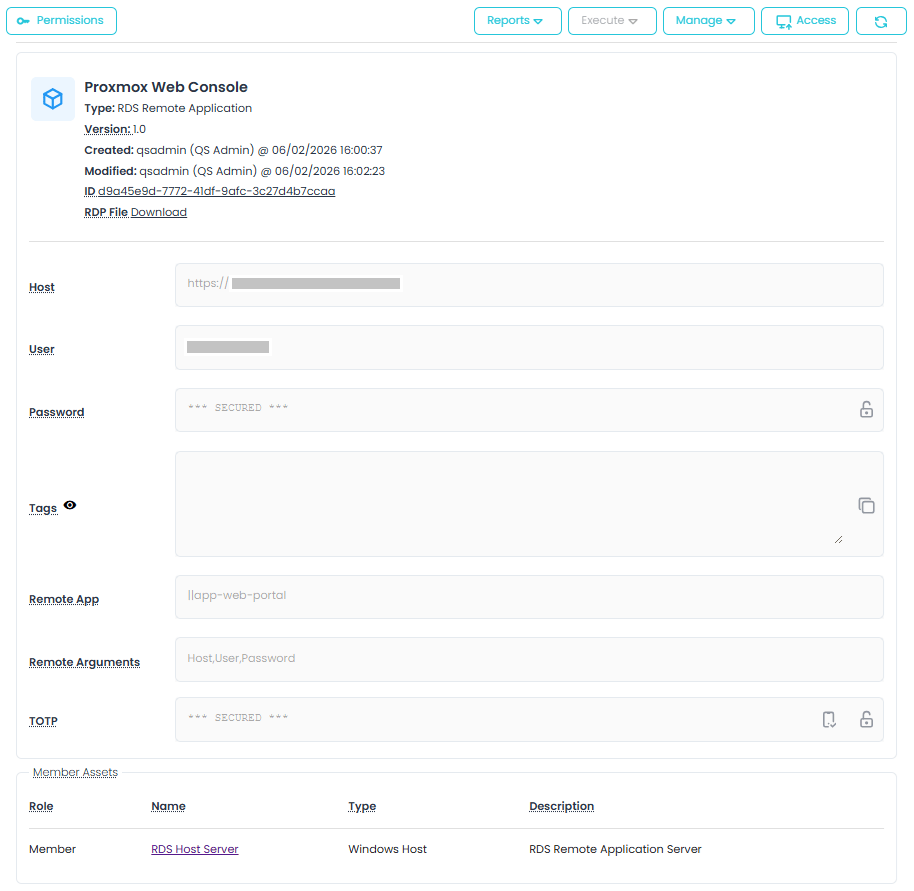
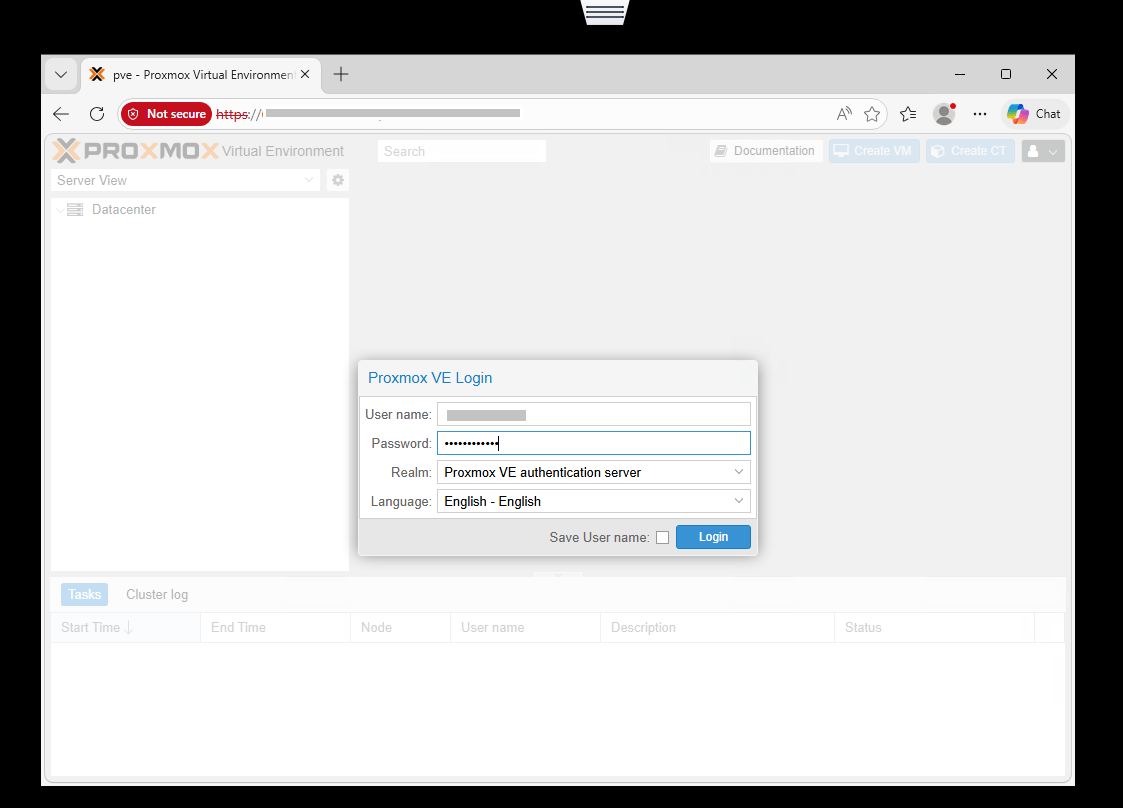
These values allow the Access Broker to inject credentials into the Universal Web Portal connection, using the Microsoft Edge web browser, without exposing them to the user.
Tip
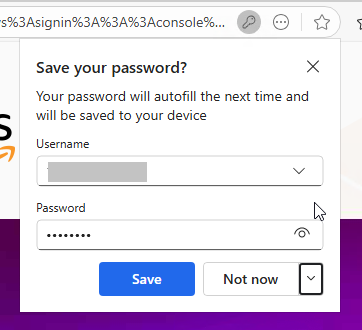
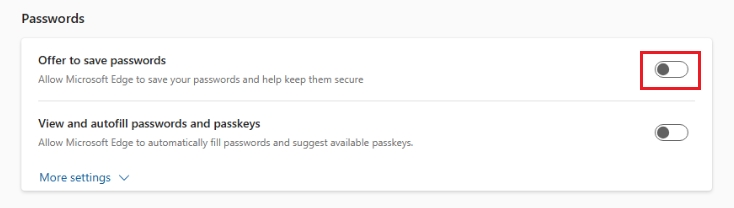
We recommend you disable the Microsoft Edge Offer to save passwords prompt as this can interrupt the automated login process.
Troubleshooting
Disable Microsoft Edge "Tab Search"
The Microsoft Edge Tab Search feature can interfere with the automated login process used by the 12Port RDS Application and may prevent auto-login from completing successfully.
If users experience issues with automatic authentication or credential submission in Microsoft Edge, disable the Tab Search feature:
- Login to the RDS server using the account saved in the RDS Host Server asset.
- Open Microsoft Edge
- Navigate to:
edge://settings/appearance - Locate the Show tab search setting.
- Disable the setting.
- Restart Microsoft Edge.
After disabling Tab Search, retry the RDS remote app session.