AWS CLI Proxy
Introduction
In enterprise AWS environments, access keys and temporary credentials often need to be available to administrators, automation, and operational tools. Storing those credentials on individual workstations creates additional exposure and makes it harder to control how AWS resources are accessed.
The 12Port AWS CLI Proxy provides a controlled path for AWS CLI requests through the PAM gateway. The proxy authenticates the local client, resolves the requested AWS target asset, and supplies the AWS credentials required for the upstream request without exposing the stored keys to the client workstation. AWS CLI commands can therefore run through an authenticated PAM connection while access remains subject to the permissions assigned within 12Port.
By placing the AWS credential boundary at the PAM gateway, organizations can keep AWS access keys under centralized control while maintaining an auditable record of AWS CLI activity. This supports environments where administrators need command-line access to AWS services without receiving or storing the underlying AWS credentials locally.
Technical Overview
The 12Port AWS CLI Proxy acts as an intermediary between the AWS CLI running on a client workstation and the AWS API endpoints used by AWS services. The client directs AWS CLI traffic to the PAM proxy, where the connection is authenticated and associated with a configured AWS target asset.
The proxy uses the authenticated 12Port identity to determine which target asset the client is requesting. The target asset contains the AWS account and key configuration required for the connection. The AWS secret key remains stored within the PAM environment rather than being provided to the client.
Once the request is authorized, the proxy establishes the upstream connection to AWS and supplies the required authentication information. The AWS CLI continues to operate using its standard command structure, while the PAM gateway handles the credential boundary and records the resulting activity.
Request and Traffic Flow
- AWS CLI Proxy Connection: The AWS CLI is configured to send its requests through the 12Port HTTP proxy. The client provides its 12Port authentication identity using the proxy connection.
- User and Target Resolution: The proxy authenticates the client and resolves the requested target asset from the connection context. 12Port then checks whether the authenticated user has permission to access that asset.
- AWS Credential Handling: The proxy obtains the AWS authentication data associated with the authorized target asset. The credentials remain under PAM control and are used by the gateway when communicating with AWS.
- Request Forwarding: The proxy forwards the AWS CLI request to the appropriate AWS API endpoint using the credentials associated with the target asset. The client receives the AWS API response through the same proxy connection.
- Session Auditing: Proxy activity is associated with the authenticated 12Port user and AWS target asset. This allows AWS CLI activity to be tracked through the PAM session reporting framework.
Use Cases
The AWS CLI Proxy supports environments where administrators need command-line access to AWS resources while AWS credentials remain under centralized PAM control.
- Centralized Credential Management: Keeps AWS access credentials within 12Port rather than distributing access keys across administrator workstations, scripts, or local credential files.
- Controlled AWS CLI Access: Allows organizations to grant users access to specific AWS accounts or target assets through 12Port permissions without providing the underlying AWS credentials directly. Implement access workflows to require approval prior to proxy session connectivity.
- Auditable Administrative Activity: Routes AWS CLI requests through the PAM gateway so AWS operations can be associated with an authenticated 12Port user and target asset for session reporting and audit purposes.
- Reduced Credential Exposure: Prevents long-lived AWS keys from being copied to local machines or embedded in command-line scripts and configuration files.
- Delegated Access to AWS Accounts: Provides a consistent access mechanism for administrators who manage multiple AWS environments while allowing each target asset to maintain its own AWS authentication configuration.
- Managed Access for Operational Scripts: Enables scripts and command-line workflows to use the AWS CLI through the proxy without requiring AWS keys to be stored directly in the execution environment.
Privilege Escalation
The AWS CLI Proxy can support controlled privilege escalation for administrative tasks that require access beyond a user's normal AWS permissions. An AWS target asset can be configured with keys that provide the required level of access, while the user receives access to those credentials through their existing 12Port permissions.
This allows organizations to separate the identity of the administrator using the AWS CLI from the AWS credentials used to perform the operation. The administrator does not need to know or store the elevated AWS keys on the local workstation.
Access to the elevated target asset remains subject to 12Port authorization. AWS CLI activity performed through the proxy can then be associated with the user's 12Port identity and the target asset used for the session.
Proxy Session Functionality
The 12Port AWS CLI Proxy provides session-level controls and auditing for AWS CLI activity performed through the proxy.
- Session Management: AWS CLI activity is brokered through a 12Port session asset. The session remains Active while commands are being executed and remains open for about 5 minutes after the last activity (idle session timeout). The session can also be terminated manually.
- Session Termination: Administrators can terminate an active AWS CLI proxy session through the supported 12Port session management controls.
- Session Transcripts: When native session recording is enabled in the user's Access Profile, each proxied session includes a session transcript containing the raw HTTP traffic exchanged through the proxy. The transcript can be reviewed for detailed analysis of requests and responses.
- File Operation Events: AWS CLI file operations such as
ls,cp, andrmgenerate session events. Upload and download operations include the captured file as part of the session record when applicable, allowing the file to be retrieved from the session report for further review. Access Profile recording is required to capture operation session events and transferred files.
Requirements
Before configuring the AWS CLI Proxy, verify that the following requirements are met:
| Requirement | Details |
|---|---|
| 12Port HTTP Proxy Status | Enabled under Configuration > HTTP Proxy Configuration with a valid key pair generated. |
| AWS Target Asset | An AWS target asset is configured in the 12Port Vault, using the AWS asset type, with the AWS Access Key and Secret Access Key required for the intended CLI operations. The user must have permission to access this target asset. |
| AWS CLI Client | The AWS CLI is installed and available on the user's local workstation. The aws command must be accessible from the system command line or PowerShell session. |
| 12Port API Token | A valid 12Port API Token assigned to the user must be generated for authentication to the 12Port Vault. The AWS CLI Proxy uses this token to authenticate with the Vault and retrieve the AWS keys from the configured target asset. |
| 12Port HTTP Proxy Certificate | The client workstation must reference the 12Port proxy certificate so that TLS connections intercepted by the proxy can be established successfully. |
| AWS CLI Client User Permissions | The user must have permission to configure the AWS CLI environment and install the proxy CA certificate. Administrative privileges may be required. |
| Network Connectivity | The client workstation must be able to reach the 12Port HTTP Proxy listener over the configured network address and port. |
| AWS Network Access | The 12Port gateway must have outbound network access to the AWS endpoints required by the configured target and AWS CLI operations. |
Configuration
Step 1: Install the AWS CLI Client
The AWS CLI client must be installed on the local workstation before configuring the 12Port AWS CLI Proxy. If the AWS CLI is already installed, this step can be skipped.
Install the latest AWS CLI version supported by your operating system using the installation instructions provided by AWS:
AWS provides installation instructions for supported Windows, macOS, and Linux environments. After installation, open a new terminal or PowerShell session and verify that the aws command is available:
Step 2: Create Vault Asset
Create or configure the credentials used by the AWS CLI Proxy in an AWS asset:
- Navigate to the Assets database and add a new asset of type AWS. Note this is a hidden, by default, asset type so it needs to be unhidden first from the Management > Asset Types page.
- Configure the resource using the parameters defined below:
| Field | Configuration Value |
|---|---|
| Name | A unique, shorthand routing identifier used by the proxy client login (e.g., aws). |
| Description | Optionally, a description of the asset. |
| Access Key | The Access Key ID to be used by the 12Port Proxy to authenticate to AWS. |
| Secret Access Key | The Secret Access Key to be used by the 12Port Proxy to authenticate to AWS. |
3. Assign Access Control: Assign target users an explicit asset permission role within 12Port to grant access rights through the proxy. They must have at least Asset Viewer permission and an Access Profile that includes Native Session: Allow.
Routing Logic Example: When a client establishes an authentication context targeting
user#aws, the gateway uses the suffix tagawsto dynamically match the configuration asset Name designated in this step. Asset ID is also supported instead of Asset Name.
Step 3: Download the HTTP Proxy Root CA Certificate
To connect via the AWS CLI Proxy, the client must trust the gateway's certificate chain.
- Authenticate to the 12Port Web Console with a Site Administrator account.
- Navigate to Configuration > HTTP Proxy Configuration.
- Verify that the proxy status is Enabled and a valid key pair is assigned. If it is not enabled, Enable the proxy and reload the page to download the certificate.
- Click Download CA Certificate and choose the PEM format.
- Save the generated public certificate to your local AWS CLI client path (e.g.,
%USERPROFILE%\.aws\httpp-ca.pem). - Take note of the HTTP Server Proxy port number (e.g. 8803) on this page. This will be required later in the configuration.
Note: The download payload contains only the public certificate component. The private key remains secure and never leaves the 12Port gateway.
Step 4: Generate a 12Port API Token
The AWS CLI Proxy uses a 12Port API Token to authenticate to the 12Port Vault. The token allows the proxy to retrieve the AWS credentials associated with the target asset without requiring those credentials to be stored directly on the client workstation.
Generate an API Token for the 12Port user who will access the AWS CLI Proxy.
- Sign in to the 12Port Web Console with a Site Administrator role.
- Navigate to Management > API Tokens.
- Create a new API Token for the specific user account that will be using the AWS CLI client. Do not share API Tokens between multiple users.
- Set an appropriate Expiration date for the token.
- In the Description field, optaionlly, provide a descriptive name for the token so its purpose can be identified later, for example
AWS-CLI-Proxy. - Save the token, then Unlock, and securely copy the token value when it is displayed.
The generated API Token will be used in a subsequent step when configuring the AWS CLI credentials on the local workstation.
Step 5: Configure the local AWS CLI Client
Configure the AWS CLI with a dedicated profile for the 12Port AWS CLI Proxy. The profile uses the 12Port user and target asset as the AWS Access Key ID, while the 12Port API Token is supplied as the AWS session token. The AWS credentials stored in the PAM Vault are retrieved by the proxy after the client connection is authenticated.
Create the AWS CLI Profile
Open a PowerShell or terminal session on the local workstation and run, replacing proxy with the name you want to use for the AWS CLI profile:
When prompted, follow the example values provided below:
AWS Access Key ID [None]: user#asset (e.g. bwilliams#aws)
AWS Secret Access Key [None]:
Default region name [None]: us-east-2
Default output format [None]: json
Where:
user#assetis the 12Port user who has permission to access the configured AWS target asset and the asset that identifies the AWS target asset. Use the assetID or assetName if it is unique. (e.g.bwilliams#awsorbwilliams#b3337695-4d13-4762-b1c8-5c31ed122e2c)- The
AWS Secret Access Keyvalue is intentionally left empty. The AWS credentials used for the upstream AWS connection are retrieved from the 12Port Vault by the proxy. us-east-2is an example AWS Region. Specify the region required for your AWS environment.jsonconfigures the AWS CLI to return command output in JSON format.
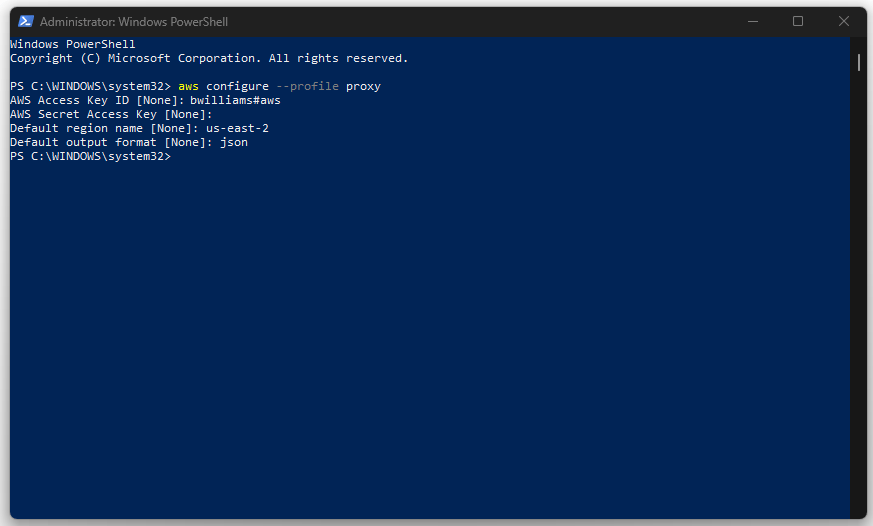
Configure the AWS Credentials File
The aws configure command creates or updates the AWS CLI credentials file. Open the credentials file in a text editor and configure the profile as follows.
Windows:
macOS/Linux:
Update the profile as follows:
[proxy]
aws_access_key_id = bwilliams#aws
aws_secret_access_key =
aws_session_token = eyJhbGciOiJIUzI1NiIsInR5cCI...
Add the following values:
- Add
aws_secret_access_key =with an empty value. - Add
aws_session_token =with the 12Port API Token generated in Step 4.
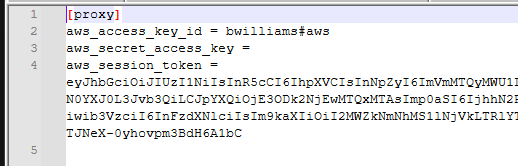
Important: The API Token is used as the aws_session_token value for the proxy profile. Protect the credentials file because it contains the token used to authenticate the AWS CLI client to the 12Port Vault.
Configure the AWS CLI Proxy Certificate
Open the AWS Client configuration file in a text editor:
Windows:
macOS/Linux:
Add the ca_bundle parameter:
Replace C:\Path\To\Certs\httpp-ca.pem with the full path to the 12Port HTTP Proxy CA certificate downloaded during the certificate configuration step. For example:
For Linux or macOS, use the appropriate Unix-style path:
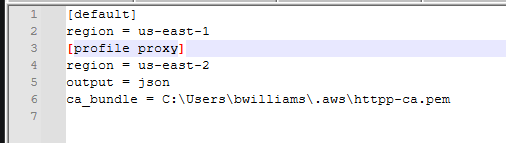
Note: The ca_bundle setting instructs the AWS CLI to trust the 12Port HTTP Proxy certificate when establishing TLS connections through the proxy. Ensure that the configured path points to the certificate file actually downloaded on the local workstation.
Step 6: Test the Proxy Session
After completing the AWS CLI configuration, run an AWS CLI command through the 12Port HTTP Proxy to verify that the client can authenticate to the proxy and access the configured AWS target.
Set the HTTPS_PROXY environment variable to the 12Port HTTP Proxy address, then run an AWS CLI command using the profile created in the previous step.
Windows PowerShell
macOS/Linux:
Replace the following values as required:
http://pam.contoso.com:8803is the URL and port of the 12Port HTTP Proxy. Use the tenant-scoped HTTP proxy port assigned to your deployment.proxyis the AWS CLI profile name configured in Step 5.aws --profile proxy sts get-caller-identityis the AWS CLI command used for the test. This example identities the AWS credentials used by the proxy as associated with the configured target asset and does not require additional AWS permissions to execute.
If the configuration is correct, the command is sent through the 12Port HTTP Proxy. The proxy authenticates the request, uses the 12Port API Token to access the Vault, retrieves the AWS credentials associated with the authorized target asset, and forwards the request to AWS.
A successful response should display the AWS credentials accessible to the configured AWS target.
Note: The HTTPS_PROXY environment variable applies to the current shell session. In PowerShell, it remains set until the session ends or the variable is explicitly cleared.
Additional Test Commands using s3
Once the AWS CLI proxy connection has been verified, the same profile can be used for common Amazon S3 operations. The following examples assume that the proxy profile is configured and that the AWS credentials associated with the target asset have the required S3 permissions.
Note:
s3commands requires the AWS credentials associated with the target asset to have permission to Amazon S3 buckets. If those credentials do not have the required S3 permission, use an AWS CLI command that corresponds to the permissions assigned to the AWS credentials stored in the 12Port Vault asset for additional testing. Before testing the proxy, determine which AWS permissions are available to the target asset, then select an AWS CLI operation that is authorized by those permissions. For example, an asset with permissions for Amazon EC2 could be tested with aws --profile proxy ec2 describe-instances, provided the credentials have permission to perform that operation.
List S3 Objects
To list the contents of a specific S3 example images location. Replace images with an existing location or use just s3 ls for all directories:
The trailing / identifies the images path. You can continue into subdirectories to list their contents:
Upload a File
Use s3 cp to upload a local file to an S3 location:
For example:
You can then list the destination to confirm that the file was uploaded:
Download a File
Use s3 cp in the opposite direction to download an object from S3 to the local workstation:
For Linux or macOS, use the appropriate local filesystem path:
Delete an S3 Object
To delete an object from the S3 location:
Note: These operations require the AWS credentials associated with the 12Port target asset to have the corresponding S3 permissions. For example, listing objects, uploading, downloading, and deleting objects can require different permissions. If an operation returns an
AccessDeniederror, verify that the AWS credentials stored in the target asset are authorized to perform the requested operation.
Audit Events
The following Events report entries are recorded during AWS CLI Proxy Start and End sessions.
Event Log Entry (Create Session):
Level: Information
Category: Operation
Event: Create Session
Message: gateway=<HTTPServer:HTTPProxyPort>, account=<AccessKey>, channel=AWS 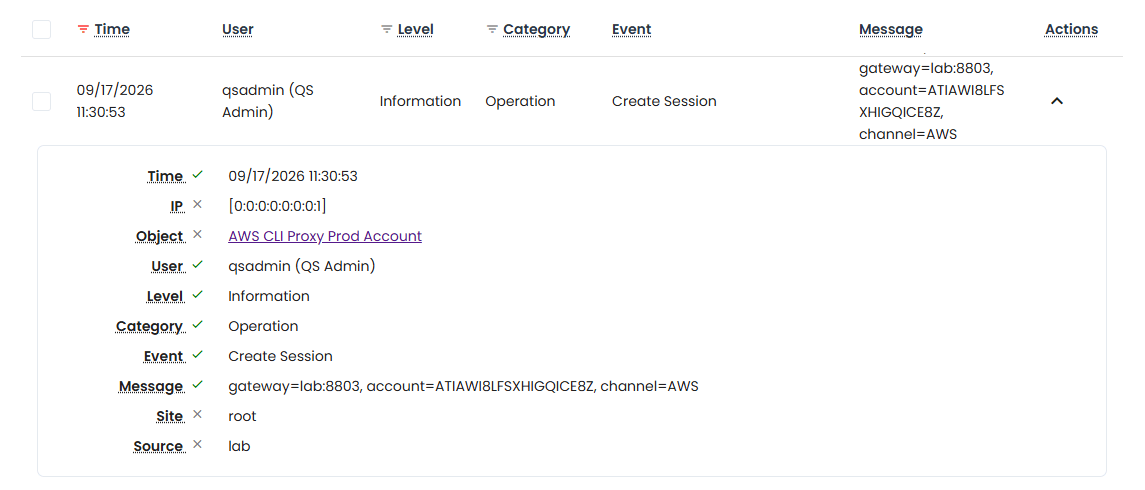
Event Log Entry (Complete Session):
Level: Information
Category: Operation
Event: Complete Session
Message: channel=AWS 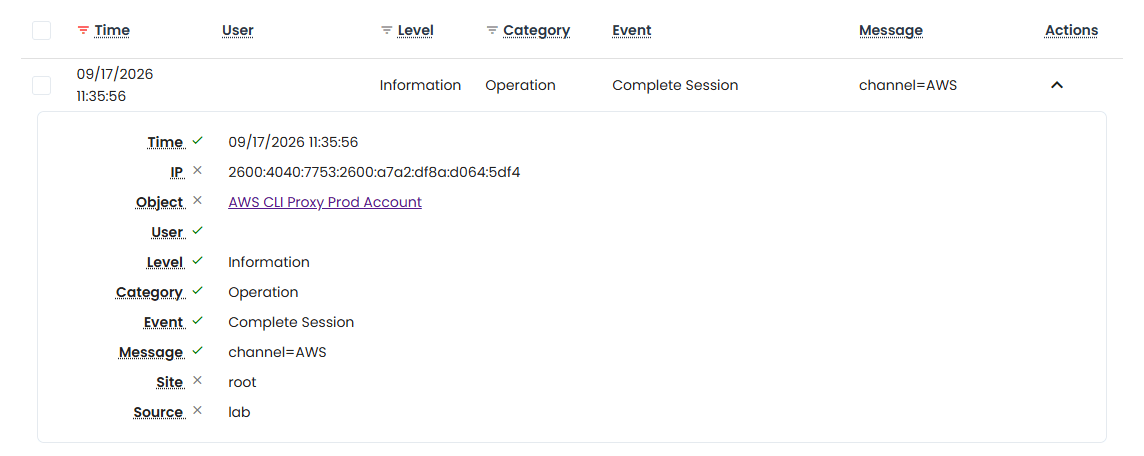
Event Log Entry (Terminate Session):
Level: Information
Category: Operation
Event: Terminate Session
Message: channel=AWS, message=Session terminated 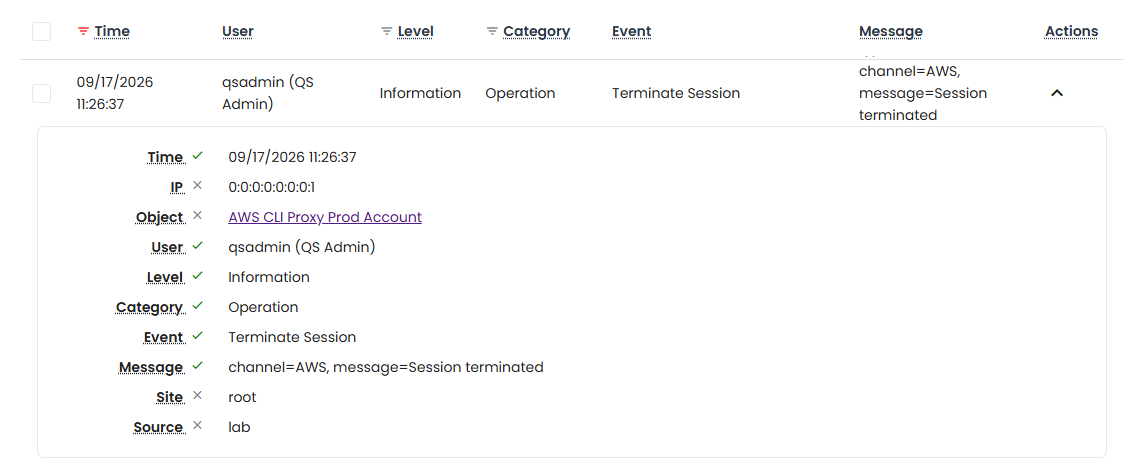
Troubleshooting
Use the following table to identify common AWS CLI Proxy errors and their likely causes. Before troubleshooting AWS command failures, verify the AWS CLI profile, proxy configuration, 12Port API Token, target asset permissions, and network connectivity.
| Symptom | Probable Cause | Remediation Action |
|---|---|---|
aws command is not recognized | The AWS CLI is not installed or its executable is not available in the system PATH. | Install the AWS CLI and verify the installation with aws --version. If it is already installed, open a new terminal session and verify that the AWS CLI installation directory is available in PATH. |
| Failed to connect to proxy URL: "url:port" | The HTTPS_PROXY environment variable contains an incorrect or unreachable proxy URL. | Verify that HTTPS_PROXY contains the correct 12Port HTTP Proxy hostname and tenant-scoped port. For example: http://pam.contoso.com:8800. Confirm that the client workstation can reach the specified host and port. |
| Unable to parse response, invalid XML received. | The 12Port API Token and/or the user#asset is missing from the credentials file configuration. The user lacks Native Session: Allow set in their assigned Access Profile. | Add your 12Port API Token to the aws_session_token = parameter and/or the user#asset to the aws_access_key_id = parameter in the .aws\credentials file, then retry the request. Update the user's assigned Access Profile to support Native Session: Allow or Native Session: Allow and Record. |
| TLS / SSL certificate errors | The 12Port HTTP Proxy CA certificate is missing, invalid, or the ca_bundle path is incorrect. | Verify that the proxy CA certificate is present on the workstation. Check the ca_bundle value in ~/.aws/config or %USERPROFILE%\.aws\config and confirm that it points to the correct certificate file. |
| Error 403: Forbidden on authentication | The proxy cannot authenticate the 12Port user, or the user and target asset identifier are incorrect, or the user is blocked by a workflow. | - Verify the user#asset value configured as aws_access_key_id.- Confirm that the 12Port user has permission to access the target asset. - Confirm that the user is not blocked by an unapproved workflow request. - Confirm that the API Token in the aws_session_token = parameter is correct.- Verify that HTTPS_PROXY points to the correct 12Port HTTP Proxy address and tenant-scoped port. |
| Error 403: Forbidden on command execution | The user's Access Profile is configured to Deny this specific operation (such as File Upload or File Download) during their session. | Have an Administrator update the user's applied Access Profile to Allow the desired operation to be performed. |
AWS returns AccessDenied | The AWS credentials stored in the 12Port Vault do not have permission to perform the requested operation. | Identify the AWS permissions associated with the credentials in the target asset and test with an AWS CLI command that those credentials are authorized to execute. |
AWS returns InvalidAccessKeyId or SignatureDoesNotMatch | The proxy may not have retrieved valid AWS credentials from the 12Port Vault, or the target asset contains incorrect or inactive keys. | Verify the AWS Access and Secret keys configured for the target asset. Confirm that the target asset is mapped to the intended AWS account and that the credentials remain active in AWS. |
| Requests bypass the proxy | The HTTPS_PROXY environment variable is not set, is incorrectly formatted, or another proxy configuration is taking precedence. | Verify the current HTTPS_PROXY value before running the AWS CLI command. Ensure the command uses the intended profile and that the proxy URL points to the correct 12Port HTTP server port. |
aws --profile proxy ... reports that the profile cannot be found | The proxy profile does not exist or the AWS CLI is reading a different configuration directory. | Verify the profile exists in the AWS CLI configuration and credentials files. Run aws configure list --profile proxy to inspect the configuration being used. |
aws --profile proxy ... reports that the profile cannot be found | The proxy profile does not exist or the AWS CLI is reading a different configuration directory. | Verify the profile exists in the AWS CLI configuration and credentials files. Run aws configure list --profile proxy to inspect the configuration being used. |
| SSL validation failed | The HTTPS_PROXY environment variable is missing or was configured with https:// instead of http://. The 12Port HTTP Proxy listener expects an HTTP proxy URL, even when it is used to proxy HTTPS requests. | Verify the HTTPS_PROXY value is available and ensure it uses the http:// scheme. For example: http://pam.contoso.com:8800. |
| S3 upload or download fails with a permissions error | The AWS credentials have access to the S3 service but lack permission for the specific bucket or object path. | Verify the IAM permissions and any bucket policies affecting the target S3 bucket. Confirm that the requested bucket and object path are within the scope of the credentials. |
| AWS CLI uses the wrong region | The profile's configured region does not match the AWS resource being accessed. | Update the region value under the [profile proxy] section in the AWS CLI configuration, or specify the appropriate region with the AWS CLI command. |
| Proxy works but the AWS command returns an endpoint or connection error | The 12Port gateway may not have outbound connectivity to the AWS endpoint required by the command. | Verify that the 12Port gateway can establish outbound connections to the required AWS service endpoints. Check firewall, DNS, and network egress rules between the gateway and AWS. |
Diagnostic Commands
The following commands can help verify which AWS CLI configuration is being used:
To verify the active proxy environment variable in PowerShell:
On Linux or macOS: