Web Browser Extension
The 12Port Web Browser Extension is a secure plugin designed to autofill credentials from the 12Port Enterprise Vault directly into website login forms. This integration occurs seamlessly between the 12Port platform, the extension, and the target web page, ensuring that credentials are never exposed visually during the process.
The extension provides users with a fast, secure, and streamlined method to authenticate to websites using credentials managed centrally within 12Port.
Availability
The 12Port Web Browser Extension is available for the following web browsers:
- Google Chrome: https://chromewebstore.google.com/detail/12port-browser-extension/edageplcobgmogdnjdpjoolipmpmohke
- Microsoft Edge: https://microsoftedge.microsoft.com/addons/detail/12port-browser-extension/ocmhhcchfnaomemomdhahljfobchndfe
- Mozilla Firefox: Download to the browser from the My Profile > About page using the Install Browser Add-On link.
Configuration
To configure the browser extension after installation and before usage:
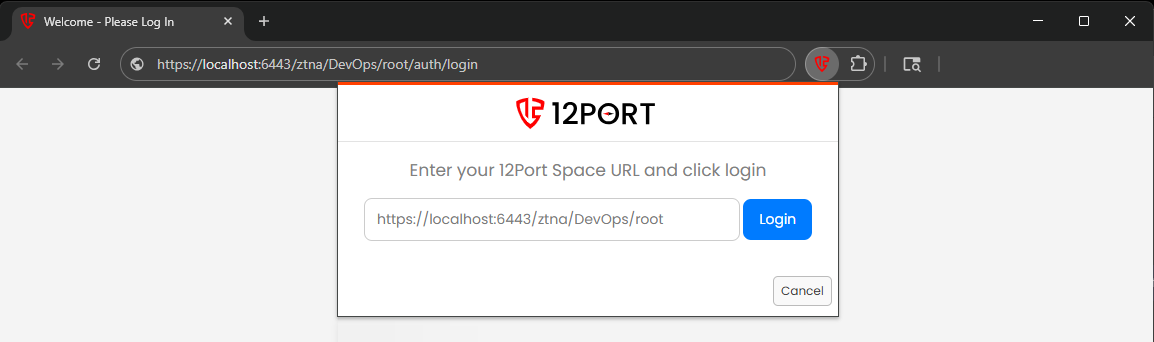
- Open the extension from your browser’s toolbar.
- Enter the full URL of your 12Port tenant where the credentials are stored. For example:
https://12port.contoso.com/ztna/DevOps/root - A new browser tab will open and navigate to the 12Port tenant. If you are not already logged in, you will be prompted to authenticate using your standard method. If you are already authenticated, access will be granted automatically.
- Once authenticated, you may close the new tab and return to your browsing session.
Usage
To use the extension for credential autofill:
- Navigate to the login page of a website for which credentials are stored in the 12Port Vault.
-
Open the browser extension and select the corresponding asset by name.
Important: Automatic credential population using the extension requires users to have the Asset Supervisor permission level (or higher) on the selected asset.
-
The extension will populate the login form with the selected credentials. In most cases, the login or sign-in button will be automatically triggered. If not, click the button manually to complete login.
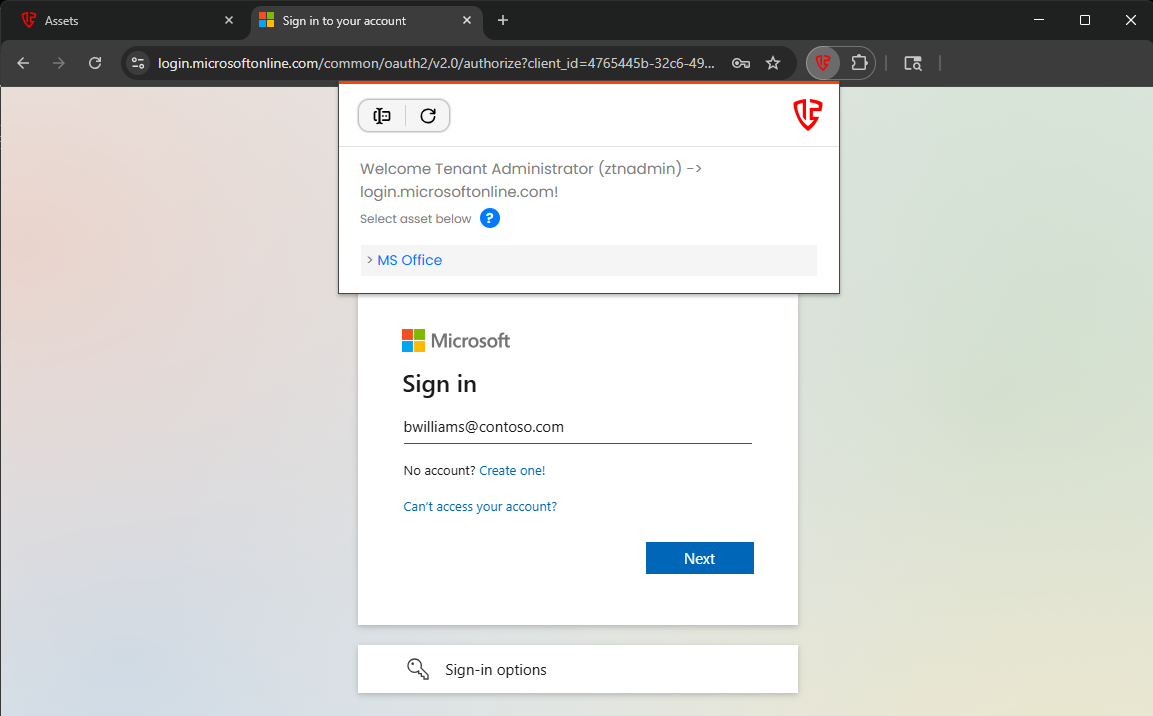
This process allows for secure authentication without the need to manually enter or expose credentials on-screen.
Troubleshooting
Specify Login Form Fields for Credential Autofill
In some cases, the Web Browser Extension may be unable to automatically identify the username and password fields on a website's login page. This can occur when the site uses non-standard field names, custom authentication controls, or dynamic form elements.
To explicitly define which fields should receive credential values, configure the Page Schema field on the associated WEB Portal asset type. This field is hidden by default and controls how credentials are injected into the website's login form.
The Page Schema value is composed of up to four slash-separated sections:
Each section may contain one or more comma-separated field names or field types.
How Page Schema Field Matching Works
When the password filler component (either the browser extension or a WEB HTTPS Session) processes a login page, it evaluates all HTML input elements on the form and applies a series of filtering and matching rules to determine which fields should receive credential values.
Ignored Field Types
Before attempting to populate credentials, the filler excludes any input elements whose type attribute matches a configured ignored field type.
By default, the following input types are ignored:
hidden, submit, button, checkbox, color, date, datetime-local,
file, image, month, number, radio, range, reset, search,
tel, time, url, week
Additional ignored field types can be specified in the third section of the Page Schema value.
This filtering prevents credentials from being inserted into non-authentication controls, such as buttons or other unrelated form elements that may use names similar to credential fields.
Username and Password Field Detection
After filtering, the filler identifies candidate username and password fields by evaluating each element's name and id attributes.
Field matching is performed against:
- Built-in default username field identifiers
- Built-in default password field identifiers
- Any custom field names defined in the first and second sections of the Page Schema
Default username field identifiers include:
Default password field identifiers include:
If a field's name or id matches one of the configured username or password identifiers, the filler populates the field with the corresponding credential value.
Action Execution
After credentials have been populated, the filler can optionally execute an action, such as submitting the login form.
To perform an action, the filler searches for an HTML element of type:
abuttoninput
The element is matched using its:
nameidtypejsname
attributes.
The value specified in the fourth section of the Page Schema is used as the action identifier. In addition, submit is treated as a default action type.
In most login forms, the action element is a button with type="submit". However, some applications use alternative elements, such as an anchor (<a>) element with a name such as login. In these cases, the action can be explicitly specified in the Page Schema configuration.
Examples
Example 1
This example instructs the extension to populate the username field named usr and the password fields named pwd and pwd0.
Example 2
This example performs the same credential injection and additionally invokes the submit action after the fields have been populated.
Finding Form Field Names
If credential autofill is not functioning as expected, inspect the target website's login form to identify the HTML form field names used for the username and password inputs, then configure the Page Schema field accordingly on the associated WEB Portal asset.
To identify the correct field names, open the login page in your browser, right-click the username or password field, and select Inspect. In the HTML, locate the corresponding <input> element and note its name attribute value. Use these name attribute values in the Page Schema configuration. For example, if the username field is <input name="usr"> and the password field is <input name="pwd">, configure the Page Schema as usr/pwd.