Approving and Rejecting Requests
Once a Requester submits their request, the specified Request Form will process it and send updates to all first-level Approvers. Each Approver can access their Approver List page to review all Active (pending) requests and decide whether to Approve or Reject them. If configured, Approvers may also approve or reject requests using email replies.
Approving or Rejecting a Request in the 12Port Web Portal
To approve or reject an Active request:
- Log in with an account that has an Active (pending) request that requires approval.
-
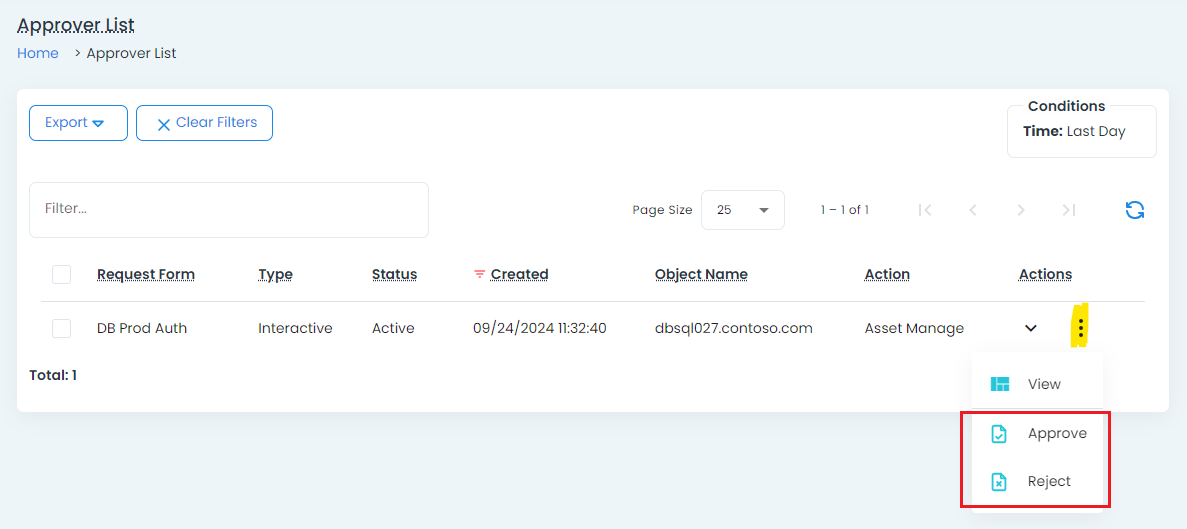
Navigate to My Profile > Approver List to review all Active requests.
-
For each Active request, select its Actions menu and choose the option Approve or Reject to process the response.
- If you choose Approve, the request will continue through the approval process in the request form, which may require additional approvals from other users before it is finally approved. Optionally, add a Comment (reason) about the approval which will be included in the Action Requests report and be visible to the requester themselves.
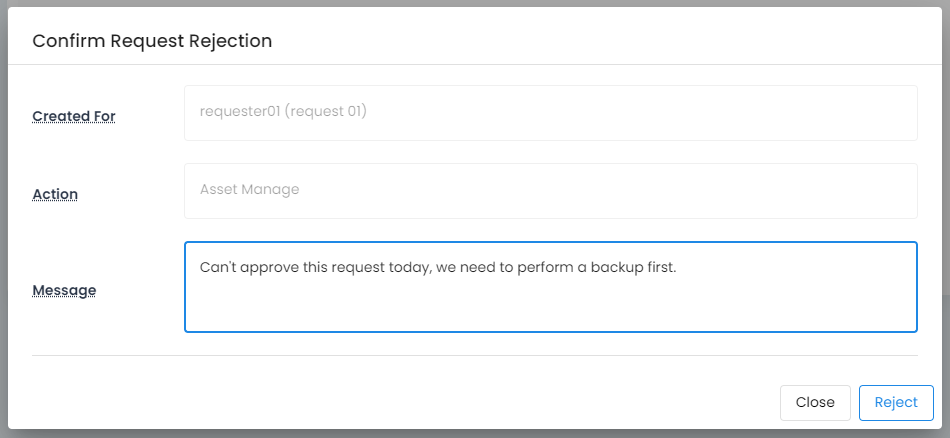
- If you choose Reject, you will required to provide a Message (reason) as to why your are rejecting this request that will be included in the Action Requests report and be visible to the requester themselves. Any single Reject response on any request will fully reject the user's request.
Approving or Rejecting a Request via Email
Once the IMAP integration has been configured and request email notifications are enabled, approvers can respond to approval requests directly from their email client without signing in to the application.
When an approval request is received by email, the approver replies to the notification email. 12Port examines the first line of the reply to determine the requested action.
Approving a Request
To approve a request, enter one of the following keywords on the first line of the reply:
Approve
Approved
OK
The keyword is not case-sensitive.
The Approval reason is recorded as Approved by mail.
Rejecting a Request
To reject a request, enter any text other than the approval keywords on the first line of the reply.
The first line is treated as the rejection reason, and the request is processed as rejected.
Approval Workflow
Email approvals participate in the standard request approval workflow.
Requests processed by email follow the same approval rules as requests processed through the application interface. Depending on the configured workflow:
- Additional approvers may still be required before the request is fully approved.
- A rejection will immediately reject the request.
- Some approvers may respond by email while others complete their approvals using the 12Port web portal.
All approval and rejection decisions are recorded in the request history and are visible on the request details page regardless of whether they were submitted by email or through the 12Port Web Portal.
Reviewing Prior Requests
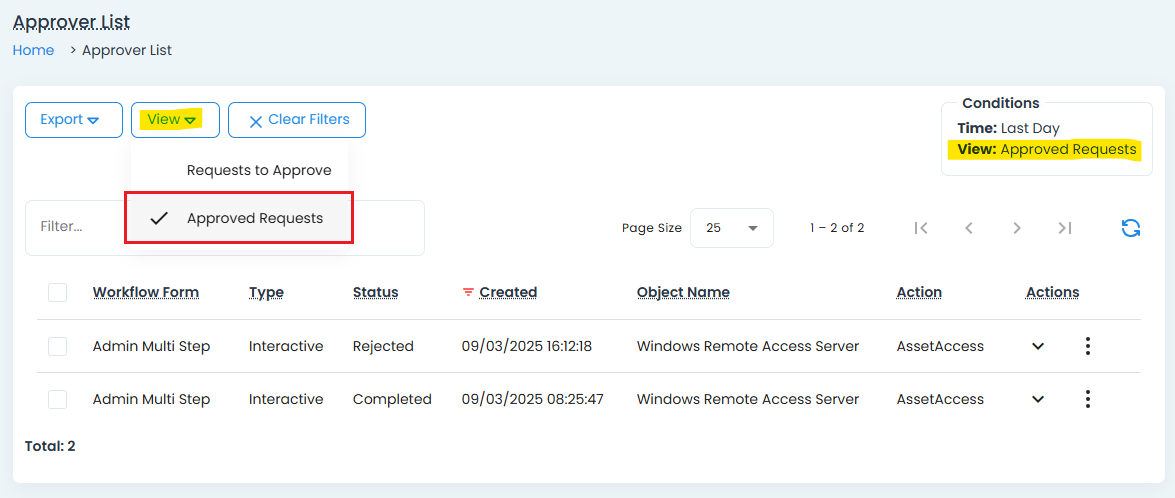
Approvers may review prior requests that have already been actioned by them (Approved or Rejected) using the View > Approved Requests selector.
Reviewing Approved Sessions
Users configured as Approvers in a Request Workflow Form can access the Assets associated with approved requests processed by that Workflow Form without requiring additional permissions to those Assets. This provides a read-only view that allows Approvers to review and manage the Sessions associated with their approved requests. Note that this non-selectable asset role will appear in reporting as an Asset Monitor.
Approvers can locate these Assets in the Vault using one of the following methods:
- Click the Object Name link on the Approver List page to open the associated Asset directly.
- Search the Asset Vault using the Object Name value displayed on the Approver List page.
- If the Asset is not visible, request that an Administrator grant the approver(s) Container Visibility to the container where the Asset resides. This allows the Asset to be discovered while maintaining read-only access.
From the Asset, Approvers can view both Active and Completed Sessions in the Sessions Report. Depending on the Session status, the following actions are available:
- View Active and Completed Sessions.
- Terminate an Active Session.
- Join an Active Session in Monitor mode only.
- Playback previously recorded Sessions.
- View the Session Events report.
- Convert and export previously recorded Sessions.
This functionality allows Approvers to review and monitor Session activity for requests processed by Workflow Forms in which they are configured as Approvers, while maintaining read-only access to the associated Assets.