Installation and Updates
This guide lists the system requirements for the 12Port application server and provides instructions for installation and performing software updates.
System Requirements
Before installing the 12Port application, verify that your system meets the requirements for your intended deployment.
Deployment Environment
12Port is an enterprise PAM software platform that can be deployed on physical servers or virtual machines. The same system requirements apply to both deployment models. Cloud-based virtual machines, including those hosted on platforms such as AWS, Microsoft Azure, or Google Cloud Platform, should be sized according to the requirements in this document.
| Trial, Test, or Small-Scale Production | Medium to Large-Scale Production | |
|---|---|---|
| Operating System (64-bit) | Windows Server 2019 or later, Red Hat, Ubuntu, Debian, CentOS | Windows Server 2019 or later, Red Hat, Ubuntu, Debian, CentOS |
| Browser Support | Current versions of Google Chrome, Microsoft Edge, Mozilla Firefox, and Apple Safari | Current versions of Google Chrome, Microsoft Edge, Mozilla Firefox, and Apple Safari |
| Processor (CPU) | Modern physical or virtual processor with 2 or more CPU cores | Modern physical or virtual processor with 4 or more CPU cores |
| Database | Embedded | Microsoft SQL Server, MySQL, Oracle Database, PostgreSQL, MariaDB |
| Minimum Memory | 8 GB | 16 GB |
| Recommended Storage Capacity | 50 GB | 100 GB |
Database Deployment Considerations
12Port supports both its own embedded database and external database platforms. The embedded database provides a simple deployment option that is well suited for trial, test, and smaller environments. External databases provide additional flexibility for larger production environments with higher usage, longer retention requirements, or availability needs.
| Embedded Database | External Database | |
|---|---|---|
| Deployment | Simple deployment with no separate database server required | Requires a separate supported database platform and administration |
| Best Fit | Trial, test, and smaller production environments | Medium to large production environments |
| Cost | Lower infrastructure cost since no separate database platform is required | May require additional database infrastructure, licensing, and administration |
| Performance | Provides fast initial deployment and is suitable for smaller workloads | Better suited for larger workloads and environments with higher session activity |
| Storage Management | Database files are stored on the 12Port application server storage and grow with application usage | Database storage is managed separately from the 12Port application server |
| High Availability | Suitable for deployments where database high availability is not required | Database-level availability and redundancy options based on the selected database platform |
| Security and Compliance | May not meet requirements that require centralized database management or separation of application and data storage | Better alignment with organizations that require centralized data management, security controls, and compliance processes |
| Growth Planning | Additional planning may be required as user count, sessions, audit data, and recordings increase | Provides greater flexibility for scaling, backup strategies, and long-term growth |
For environments with larger user populations, higher session activity, longer data retention periods, or availability requirements, an external database deployment is recommended.
Storage Recommendations
The 12Port application requires approximately 10 GB of disk space for installation.
The recommended storage capacity is intended for environments where 12Port is fully deployed and actively managing privileged access. Storage usage will grow over time as logs, audit records, and session recordings (if enabled) are retained.
Storage requirements depend on factors such as:
- Number of users
- Number and duration of privileged sessions
- Audit and logging activity
- Session recording usage
- Data retention policies
Use retention policies for logs, audit data, and session recordings to help manage storage usage. Environments with higher activity levels or longer retention periods should plan for additional storage beyond the recommended capacity.
For best performance, deploy 12Port on SSD or other high-performance storage. Faster storage can improve application responsiveness and embedded database performance, especially in environments with high session activity, extensive auditing, or session recording enabled.
Network Recommendations
For optimal performance, deploy 12Port on a low-latency, high-bandwidth network with the most direct path available between clients, the 12Port server, and managed systems.
Where possible, avoid unnecessary network inspection, proxy, or scanning devices that may add latency or affect interactive sessions.
12Port can operate within environments that use network security controls. Limiting unnecessary network hops and inspection points helps maintain responsive sessions and a better user experience.
Security Software Recommendations
To support a smooth installation and reliable operation, configure security and malware protection software to allow the 12Port installation directory and required services to run without unnecessary scanning interruptions.
When permitted by your organization's security policies only, add exclusions or allowlist entries for the 12Port application files, directories, and services. This can help avoid installation delays, service startup issues, and performance impacts caused by real-time scanning.
12Port is designed for quick deployment and works alongside standard enterprise security controls. Any security software changes should follow your organization's security policies and approval processes.
Installing the 12Port Application
12Port can be installed using an Online or Offline method. If choosing Online, then please be sure the server has internet connectivity during the entire installation process. Offline does not require internet connectivity.
Note
If installing the software to a Linux host server, ensure that the unzip utility is installed before proceeding with the installation. Some Linux distributions do not include this utility by default, which is required to extract the software package.
Tip
Prior to installation, we recommend disabling all endpoint protection software or configuring exceptions for 12Port and its services. Such software may interfere with deployment or the startup of required services.
Windows
Online
Download the Windows installation script setup.ps1 to a directory like C:\12port and run it from an elevated PowerShell session. Do not install 12Port to a temp directory. Follow the prompts to install the software and start both 12Port application services; 12port and 12port-gw.
Alternatively, installation can be performed by executing the single PowerShell command below replacing the $folderPath value "C:\12Port" with your chosen installation directory:
$folderPath = "C:\12Port"; if (!(Test-Path $folderPath)) { New-Item -ItemType Directory -Path $folderPath }; Set-Location -Path $folderPath; Invoke-WebRequest -Uri "https://bin.12port.com/product/setup.ps1" -OutFile "$folderPath\setup.ps1"; & "$folderPath\setup.ps1"
Offline
From a computer with internet connectivity, download the 12Port offline installation package 12port-offline.zip and copy this file to your 12Port server. Extract the archive, copy the extracted content to a directory like C:\12port, and run the installation script setup.ps1 from an elevated PowerShell session. Do not install 12Port to a temp directory. Follow the prompts to install the software and start both 12Port application services; 12port and 12port-gw.
Linux
Linux Distribution Support
12Port supports both major Linux runtime environments: glibc (GNU C Library) and musl.
This ensures compatibility across traditional enterprise distributions, such as Red Hat, Ubuntu, Debian, and CentOS, as well as modern, minimal distributions like Alpine Linux and musl-based Gentoo systems.
Support for musl-based environments enables deployment in lightweight, containerized infrastructures commonly used in cloud-native and Kubernetes-based architectures. Musl-based distributions are designed with a minimal footprint, faster startup characteristics, and a reduced attack surface, making them well-suited for microservices and AI-driven workloads.
Our AI-enabled credentials vault with MCP server is particularly well-suited for these environments, where efficient, secure services must integrate seamlessly into larger distributed systems and workflows.
This dual compatibility allows our platform to operate consistently across both full-featured systems and highly optimized container environments.
Online
Download the Linux installation script setup.sh to the recommended directory /opt/12port and run it as a non-root user. Do not install 12Port to a temp directory. Follow the prompts to install the software and start both 12Port application services; 12port and 12port-gw.
Alternatively, installation can be performed by executing this single command from a prompt:
sudo mkdir -p /opt/12port && cd /opt/12port && sudo chown -R $(whoami) /opt/12port && wget https://bin.12port.com/product/setup.sh && chmod +x setup.sh && ./setup.sh
Offline
From a computer with internet connectivity, download the 12Port offline installation package 12port-offline.zip and copy this file to your 12Port server. Extract the archive, copy the extracted content to the recommended directory /opt/12port, and run the installation script setup.sh as a non-root user. Do not install 12Port to a temp directory. Follow the prompts to install the software and start both 12Port application services; 12port and 12port-gw.
Best Practices for Production Deployments
The following approach is recommended for production environments where stricter security controls and separation of privileges are required.
Overview
In a hardened deployment, the application is installed and managed using two distinct Linux accounts:
- Privileged Deployment Account
An account withsudoprivileges used exclusively to execute installation, updates, and uninstallation scripts. - Service Account
A dedicated, non-privileged account that owns and runs the application. This account can be configured with no interactive login capabilities.
This separation limits the extent of potential vulnerabilities by ensuring the application does not run with elevated privileges.
Prerequisite: Service Account
A service account must be specified during installation. You may either:
- Use an existing service account, or
- Create a new dedicated service account for this application
If creating a new account, it should meet the following requirements:
- Non-privileged (no
sudoaccess) - No interactive login shell
- No password assigned
- Intended solely for running the application
Example (Ubuntu):
Note: Commands and options for account creation may vary across Linux distributions.
Installation Using a Service Account
The installation script supports assigning ownership of the application to a pre-existing service account.
Note: The service account must be created prior to running the installation. The script will fail if the specified account does not exist.
Run the installation as follows:
Example:
Updating the Application
To update an existing installation, execute the update script using the same service account specified during installation.
Run the command from the application’s installation directory (e.g., $HOME):
Example:
This ensures file ownership and service permissions remain consistent.
Uninstalling the Application
To remove the application, run:
Follow the interactive prompts to complete the removal process.
Security Considerations
This deployment model enforces the principle of least privilege:
- The application runs under a non-privileged service account with no login capability
- Executing administrative scripts (install/update/remove) require a separate sudo-enabled account
- In the event of an application-level compromise, access is limited to the permissions of the service account
This approach significantly reduces the risk of privilege escalation and aligns with standard enterprise Linux security practices.
Silent Installation
Silent installation is an essential option for 12Port deployments due to its ability to automate the deployment process, minimize user interactions, enable faster deployments, reduce IT time and effort, and ensure consistent results.
12Port offers silent installation for both Windows and Linux deployments as described below.
Windows
To deploy 12Port to a Windows host using the silent installer, add the following arguments to the PowerShell script as required:
-silent (required) -- defines silent installation
-eula (required) -- auto-accepts the software's EULA. You can read the EULA here.
-location (optional) -- if included, define the software's installation directory. If not included, the software will be deployed to the current directory.
-help (informational only) -- displays the list of available arguments and descriptions. Do not include this argument in your silent deployment script.
An example PowerShell silent install script where the software is deployed to the current location:
.\setup.ps1 -silent -eula
An example PowerShell silent install script where the software is deployed to the location defined in the script:
.\setup.ps1 -silent -eula -location "c:\12Port"
Linux
To deploy 12Port to a Linux host using the silent installer, add the following arguments to the script as required:
-silent (required) -- defines silent installation
-eula (required) -- auto-accepts the software's EULA. You can read the EULA here.
-location (optional) -- if included, define the software's installation directory. If not included, the software will be deployed to the current directory. Do not install to a temp directory.
-user (optional) -- if included, define the service account to run the 12Port service as. Do not use root.
-help (informational only) -- displays the list of available arguments and descriptions. Do not include this argument in your silent deployment script.
An example Linux silent install script where the software is deployed to the current location:
./setup.sh -silent -eula
An example Linux silent install script where the software is deployed to the location defined in the script:
./setup.sh -silent -eula -location "/opt/12Port"
Updating the 12Port Application
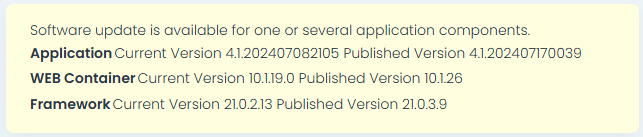
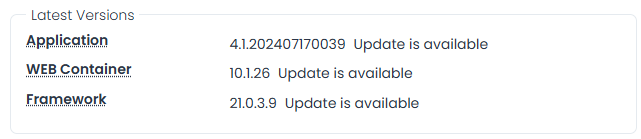
When a software update becomes available, Administrators will receive an update message, as shown above, on the tenant Dashboard (Home page). They can also learn of the available update from the Management > About page in the Latest Versions section, as shown below.
To perform the update, login to the 12Port application server, open an elevated prompt, navigate to the application's installation directory, and run the update.ps1 (Windows) or update.sh (Linux) command to begin the process. Follow the prompts to update the software.
To communicate with the 12Port update server be sure that the host performing the update can access the server address bin.12port.com using https over port 443. Please make any firewall adjustments necessary to ensure this connection can be made.
Note
The 12Port application will be inaccessible during this update process.
Silent Update
To perform a silent update, add the -silent argument to your update script:
Windows: .\update.ps1 -silent
Linux: ./update.sh -silent
Uninstalling the 12Port Application
To uninstall the 12Port application from your system, run uninstall.ps1 (Windows) or uninstall.sh (Linux) in your installation directory and follow the prompts. The 12Port application service will be removed and program files will be deleted.
Silent Uninstall
To perform a silent uninstall, add the -silent argument to your update script:
Windows: .\uninstall.ps1 -silent
Linux: ./uninstall.sh -silent
Warning
Use caution with this silent uninstall option as the uninstall process will begin immediately and cannot be undone.